
Gamma user guide
Read papers, keep what you learn. This guide shows each part of Gamma in a short animation and a few lines. Installing it is in the README.
| Section | What it covers |
|---|---|
| Getting started | Sign in, add a paper, read it |
| Highlight and annotate | Highlights and their notes, area screenshots |
| Draw and type on the page | Pens, the lasso, text boxes, pictures |
| Record audio | A lecture in step with your notes; tap anything to hear that moment |
| Notebooks | Sheets of paper to write on |
| Follow links and translate | Citations, Back, translation in place |
| Notes | Markdown and math that render as you type |
| Outline and links between pages | Nesting, moving notes, [[ links, @ mentions and reminders |
| AI chat | Ask about the paper, with clickable citations; every AI service you can connect |
| The library agent | Let the AI organize and edit, with your approval; what each tool does |
| Library | Labels or folders and how to file a paper, Recently deleted |
| Search | Everything at once, Ctrl+P to jump |
| Metadata and citations | Title, authors, BibTeX |
| Share a page | Links for viewers and editors |
| Workspaces | Personal and shared libraries, editing together |
| Comments and inbox | Threads on notes, highlights and pages; mentions, replies and shares in one inbox |
| Offline copies | A synced copy on your laptop or iPad |
| Zotero link | A workspace in step with a Zotero library, both ways; what travels, PDFs, conflicts |
| Gamma Connector | Save papers from the browser |
| Assistants | Codex, Claude Code, DeepSeek Harness and other MCP clients; the tools they get |
| Import and export | Zotero, Notability, Obsidian, Notion, PDF, BibTeX |
| Backups and upgrades | Snapshots, exports, what a new version does |
| Install as an app | iPad, phone, desktop |
| Settings | Where things are |
| Shortcut cheat sheet | Every default key |
Getting started#
- Sign in with the account your administrator gave you, or Continue as guest where the server allows it (a guest workspace is deleted after a while; the button says when).
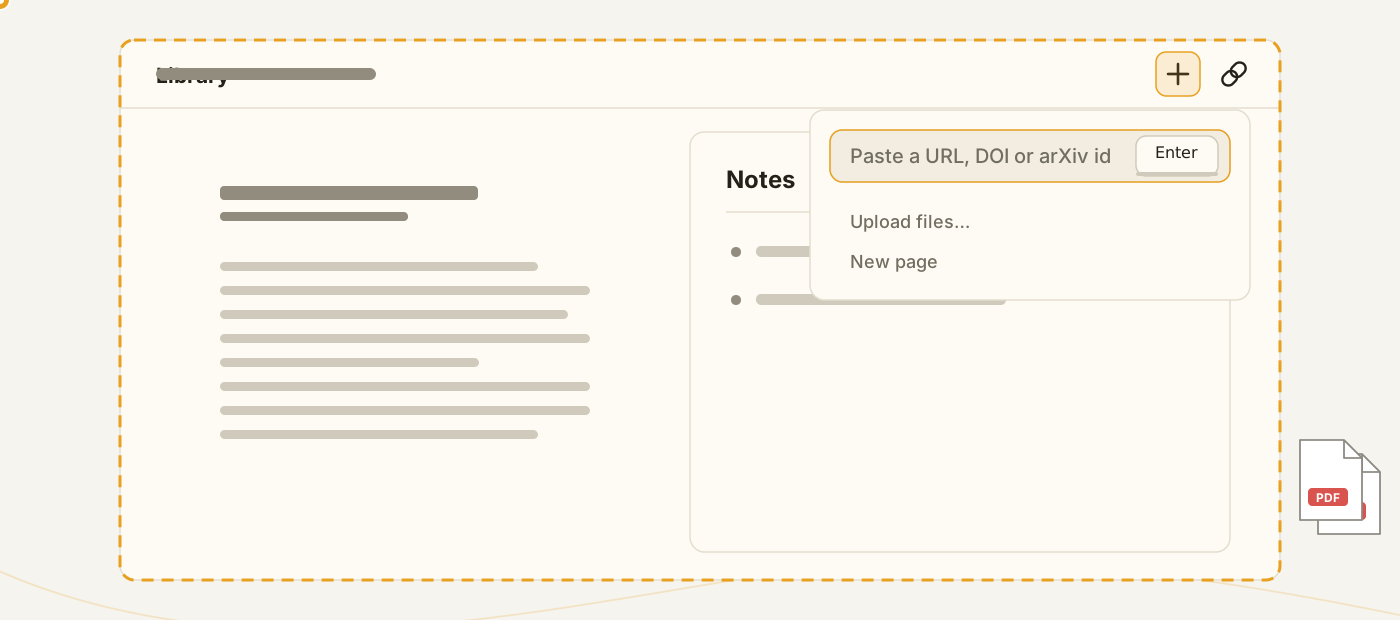
- Add a paper: press + and paste any link (arXiv, DOI, a publisher page). Gamma finds the PDF. Or upload PDFs, or drag files and folders into the window.
- Read it. The paper opens with a Notes panel beside it. Select text to highlight, type under the highlight to add a note. Everything else builds on that.
A new account starts with a Welcome page to practise on, and a Sketchbook: a notebook whose drawings show what to try with the pen and circle where each button is. Tours in the account menu walk you through each part on the real controls.
Highlight and annotate#
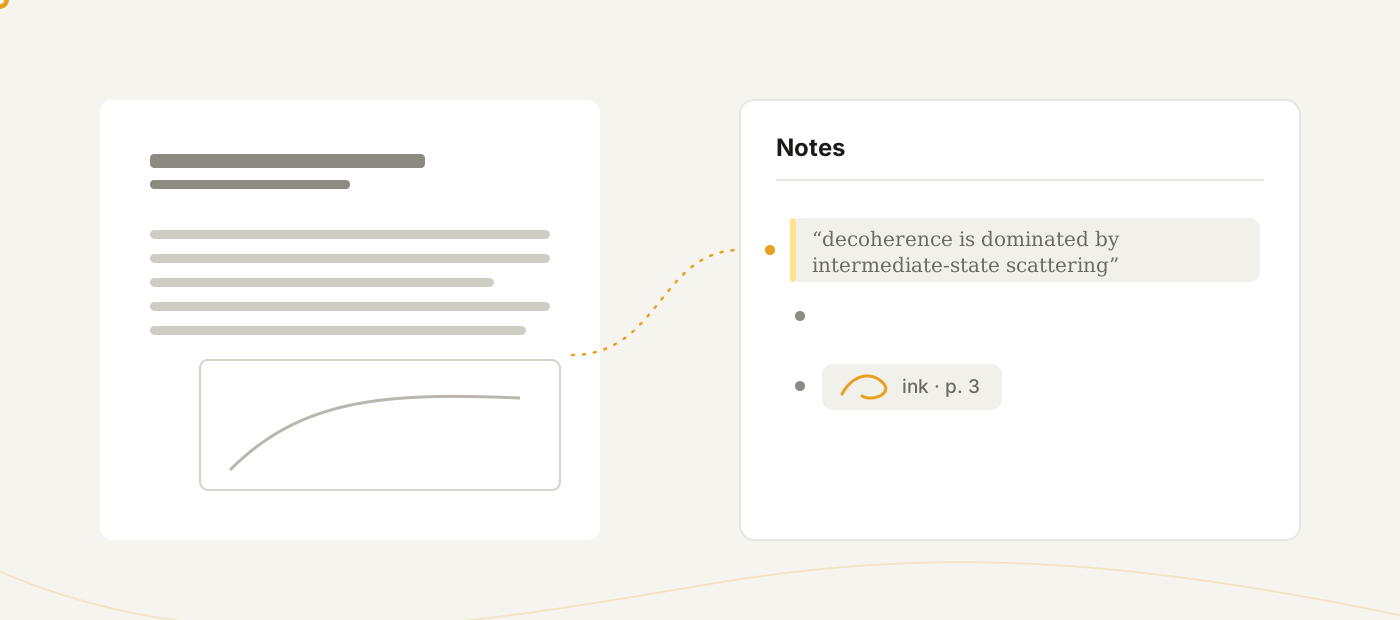
- Highlight: select text, and pick one of four colors in the bar that opens beside the pointer as you move the mouse on. The highlight becomes a note block, ready for your note. The tools after the colors comment on the passage, link it to a paper and translate it.
- Highlight as you read: the text highlighter in the viewer's zoom column (the marker with a colored bar under it) skips the bar. While it is on, what you select with the mouse is highlighted as soon as you let go, in the color you used last: the last one picked in the bar, or in the highlighter's own colors, which a right-click (or long press) on it opens. Its note opens for typing, as it does from the bar. Move the mouse on and the bar opens over the new highlight: a color there changes it (and is the highlighter's from then on), and its tools comment on it, link it and translate it. Click the highlighter again to turn it off. A selection made with a finger still gets the bar, since its handles may still be moving. Opening the pen's strip turns the highlighter off, and turning it on closes the strip.
- Area screenshot: hold Ctrl and drag a rectangle. The region goes to the AI chat as an image, and a color keeps it as an area highlight.
- Click a highlight to jump to its note; click the note to jump back. Right-click to recolor, link, comment on or delete it.
- Highlights, drawings, typed notes and image stamps made in other PDF apps are imported when the paper is added. An image stamp becomes a picture on the page.
- A new version of the PDF: the paperclip menu's Replace the PDF… swaps the file and finds each highlight's text in the new one, moving the highlight there (an area highlight follows the caption or figure the PDF draws inside it). Find highlights in this PDF in the same menu runs the search again at any time, and places the highlights when the status says they were not placed. In the desktop app, Follow a file on this computer… in the same menu does the replacing for you each time a PDF on your disk changes, such as a LaTeX build's
main.pdf. - A dashed highlight is one whose text changed a little in the new version (a renumbered citation, a reworded phrase), or an area whose place is an estimate: it sits where the closest match is, for you to check. Hover it (tap it on a touch screen) to see how closely it matched, a picture of where it was in the previous version (on a page opened through a share link, its old text instead) and the words that changed, with the note it carries (and how many notes are under it and comments on it). Accept keeps it where it is and draws it solid, Move… puts it on your next selection, and Discard takes it off the PDF (below). If you replace the PDF again before checking it, the highlight is looked for again by the text it had before it turned dashed, not by its dashed guess: it turns solid where that text is word for word, and hollow where it was then when that text is gone. An area whose place is an estimate stays dashed wherever its text or picture turns up, unless you put back the very PDF it was last solid on: then it turns solid where it was. Right-clicking a dashed highlight offers Accept too. How alike a changed passage must read to be moved, and how short a passage must match exactly, are set in Settings → Reading & editing › Replacing a PDF.
- A hollow highlight's text was not found in the new version, so it stays where it was. Hover or tap it for its card: a picture of where it was in the previous version, its text and the note it carries. When the new version has a passage that reads at least half like it, but not alike enough to be moved, the card shows that closest match, how alike it reads and the words that differ: Show outlines it on the page, and Use closest match puts the highlight there and takes its text; press Accept to keep it there. Otherwise Move… on the card, or Move to a selection… when you right-click it (or the same button beside its row in the notes), lets you select the text where it belongs (even text that is highlighted already), or drag an area, and press Move the highlight here in the bar that opens; back on the card, press Accept to keep the new place. Until you move it or use its closest match, Accept on a hollow highlight's card is greyed out. Move to a selection… also fixes any highlight that sits wrong. If you no longer want a dashed or hollow highlight on the PDF, Discard on its card takes it off: a highlight with no note, nothing written under it and no comments is deleted; one that has any of these stays in your notes with its quote, and only leaves the PDF. Hover Discard to see which it will do.
- Reviewing them in turn: every card has its buttons in one row in the same order (Accept, Use closest match when there is one, Move…, Discard), with the arrows and the count on a line of their own under them. After Accept, Use closest match, Discard or a move from it, the card stays open and looks the same, so nothing jumps under the pointer. Only the button you pressed changes: it shows a check and reads Accepted, Placed, Discarded or Moved, and pressing it again undoes that step. On a hollow highlight's card with a closest match, Move… and Discard are icons only, so pressed they show the check alone; hover one to see its name. Buttons that no longer apply are greyed out. The arrows beside the count go to the page's previous and next dashed or hollow highlight, round from the last to the first. The ones you already handled stay in that list where they were, so the count does not change, and you can go back to one and undo it. Accept and Discard decide a highlight: a moment later the card goes on by itself to the next one still to check, and the notes panel scrolls to that highlight's note, as it does for the arrows (a card you only hover leaves the notes where they are). Press anything on the card during that moment, its pressed button to undo for one, and it stays. A moved highlight, or one on its closest match, is still to check until you accept it, on the card and in the paperclip menu's count; once you go to another page or file, or reload, it counts as reviewed where you put it. When none is left to check, the count reads All reviewed and the card stays. While its highlight is scrolled out of view, the card hides, and it comes back when you scroll back. A highlight from a page the new version no longer has is reached this way too: its card says the page is gone and still offers its picture, its closest match and Move…. The paperclip menu shows Review 3 highlights while a page has some left to check, which opens the first one's card, and Accept all 3 rough matches, which accepts every dashed one on the page at once (Undo takes it back).
- Zoom with Ctrl+wheel or pinch; dark pages in Settings → Appearance.
Draw and type on the page#
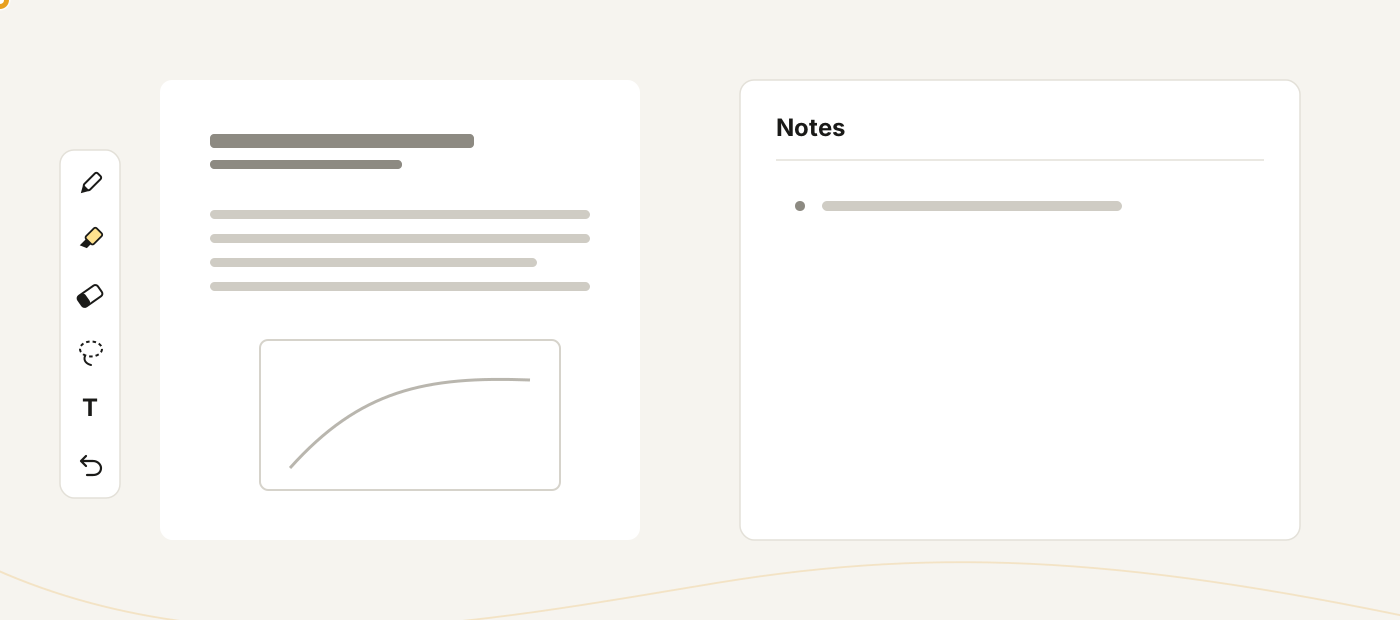
The pen button in the viewer's zoom column opens the tool strip: pens and highlighters, an eraser, a lasso, the Text tool, the Picture button, undo and redo.
- A stylus draws right away, with pressure, while fingers scroll. The mouse draws once the strip is open.
- The lasso moves, resizes, recolors, flips, copies, duplicates or deletes strokes. Ctrl+C / X / V copy, cut and paste them; to paste at a point, hold the pen still on the page, or right-click there. New note in the lasso's menu gives the selection a note of its own.
- More (⋯) on the strip holds the ruler (a straight edge: a pen along its edge draws a straight line), Shapes (drag a line, an arrow, a rectangle or an ellipse) and the zoom window (write large in a panel under the page, on PDF pages). A shape you select has handles to reshape it and can be filled.
- The pen's Style menu offers Pen, Ballpoint, Brush, Pencil and Calligraphy, a flat nib whose angle you set.
- The strokes on a page become one ink block in the notes, with a caption under it. Its play button replays the writing.
- Transcribe with AI in the block's menu turns handwriting into text, math as LaTeX; Transcribe in the lasso's menu does it for just the selected strokes.
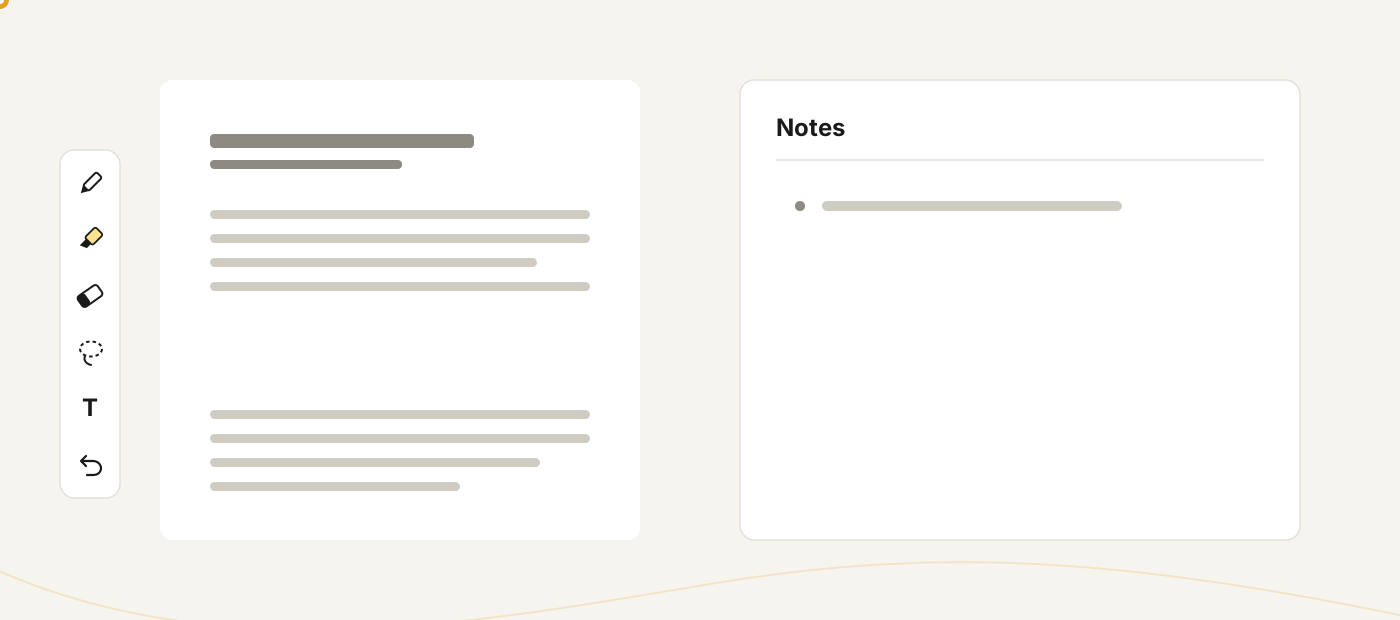
The Text tool puts typed text on the page like a text box in Acrobat: click to place, type, drag the handle to resize. Markdown and math work inside it, and each box is a note with a T marker.
The Picture button (I) on the strip puts photos and images on the page in view, a PDF page or a sheet of paper. A new picture lands in the middle of the page, at most half its width and height, and stays selected. Pictures lie under the handwriting and the text boxes, and each one is a note with a picture marker.
- Paste or drop works too: paste an image while no note is being edited, or drop image files on the page where they should go. Several files land stacked, each a little to the right of and below the last. While you type in a note, a paste puts the image in the note instead (Notes).
- From another app on the iPad: share a photo or an image to the Gamma iPad app (the share sheet, Files' Open in, AirDrop), and it lands on the page in view. With no PDF page or sheet of paper in view, Gamma asks you to open one and share the image again.
- Formats: PNG, JPEG, GIF, WebP and SVG go up as they are, and a GIF keeps its animation. An SVG stays sharp at any size and in the annotated PDF; Notability gets a picture of it. Other images the browser can open (HEIC in Safari, TIFF, BMP) are converted to JPEG or PNG, and a very large picture is scaled down.
- Select a picture with a click or a tap while no tool is armed: the strip closed, or the hand (V). Right-click also selects it and opens its menu. With a tool armed, the tool works over a picture that is not selected: a pen writes on it. A stylus writes on it too, until the picture is selected. Escape lets go.
- Move it by dragging, or with the arrow keys (1 pt a press, 10 with Shift). A finger moves only the selected picture and scrolls elsewhere. A picture stays on its page.
- Resize and turn it with the two handles on its corners, as with the lasso. The resize handle keeps the proportions; hold Alt to stretch the picture. The turn snaps to right angles, or to 15° steps with Shift.
- Crop from the menu, or double-click the picture. Drag the corners and sides, or drag inside to move the part kept. Enter or the check applies the crop, Escape or the cross cancels it. The part kept stays where it was, and the rest of the image is not thrown away: a wider crop or Reset brings it back.
- The menu of a selected picture holds Crop, Flip horizontal, Flip vertical, Duplicate, Copy image (it needs HTTPS or localhost) and Delete. More (⋯) holds Fit to page (centred, as large as the page allows), Reset (the whole picture, upright and unflipped, at its own proportions), Bring to front and Send to back (among the page's pictures; the notes keep their order), Opacity, Lock and Show note. Delete or Backspace deletes the selected picture.
- Opacity offers 100 %, 75 %, 50 % and 25 %, so the page shows through a faded picture. The annotated PDF keeps it. Notability shows the picture opaque, and the export says so. Copy image copies the picture as faded as it shows.
- Lock keeps a picture where it is, say a worksheet you write on: it can't be moved, resized, turned, cropped, flipped, faded or deleted on the page. A click still selects it, and its menu offers Unlock, Copy image and Show note. Its caption can still be typed in the notes. The lock stays in the annotated PDF and in Notability, both ways.
- With the lasso: a loop round strokes and pictures takes both, and they move, resize, turn, flip, duplicate and delete together. One undo takes the whole step back. Copy, cut, recolor and the other stroke edits leave the pictures as they are. A locked picture is never taken. Turn Pictures off in the lasso's options (tap the armed lasso) to select strokes alone.
- In the notes the picture's block shows it as it is on the page; click it or its marker to find it there. The block's text is the picture's caption. Exports keep the caption: the image's alt text in Markdown, the annotation's comment in the annotated PDF, the caption under the picture in Notability. On a page you can only view, a click on a picture shows its block.
- Undo: Ctrl+Z, or the strip's Undo while the picture is selected, takes back each edit.
Record audio#
Press the microphone in the viewer's zoom column (after the pen, unless you moved it) and keep reading and writing: everything you write or type while it records is linked to the moment you made it.
- The recording appears as a block in the notes with its length and date. Pause and Stop are on the pill at the bottom of the page; Bookmark drops a note stamped a few seconds back, for a moment you want to find again.
- Play on the recording's card plays it back: handwriting not yet reached is faded and appears as it was written, notes are shaded until their moment, and the page and the notes follow along.
- Tap any stroke, text box, picture or note during playback to hear what was being said when you wrote it, from a few seconds before. Outside playback, hover a note for the play glyph in its margin.
- The player has 10-second skips, Previous / Next writing to jump past the silence, three display modes (Spotlight, Reveal, Static) and speeds from 0.7× to 2×.
- Transcribe in the card's menu writes the spoken words under the recording, each paragraph linked to its moment, so you can search them and tap one to hear it. Settings → Reading & editing › Recordings can do this for every recording.
- Recording needs HTTPS, localhost or the desktop app: a browser blocks the microphone on plain HTTP.
Try the interactive demo of playback.
Notebooks#
A notebook is a page with sheets of paper to write on, and any page can hold them.
- + → New notebook, or type /note in a block.
- Write with the same pens as on a PDF; writing near the bottom adds the next sheet.
- Paper sets size, orientation and pattern (blank, ruled, grid, dots).
- Notebook view shows the sheets large in the viewer; Notes view puts them back among your notes.
Follow links and translate#
- Citations are clickable: a paper already in your library opens; otherwise choose Fetch into Gamma or Open in browser.
- Back (Alt+←) unwinds jumps with their exact scroll positions, across papers too.
- The 文A button translates the page you are reading, in place. Hold Alt (⌥ on a Mac, or the key set in Settings → Keyboard) to peek at the original; right-click for the whole document. With Settings → Language and Translation › Translation button off, it waits in the viewer's ⋯ menu instead.
- The first paragraphs appear at once. The rest wait while Gamma reads the paper, so its terms are translated the same way throughout. The first ones are redone with those terms at the end when they went without them.
- A whole-document translation goes on when you open another page. Background tasks shows how far it is and can stop it, and the PDF shows its translation when you come back.
- Formulas, citations and links keep their printed look inside the translation, and a paragraph that runs on into the next column is translated as one, as is one that runs over a page break when you translate the whole document.
- Select text and press 文A in the popup to translate a passage.
- Settings → Language and Translation picks the language and what translates: a chat model, or a translation service (Microsoft works with no setup).
- A PDF stored in the workspace keeps its translation on the server: the next time you press 文A on it, the kept paragraphs come back at once, with no tokens spent. Keep translations in the same settings turns this off; the line under it says what is kept, with Clear. To translate one paper afresh, right-click the 文A button and choose Forget this translation.
Notes#
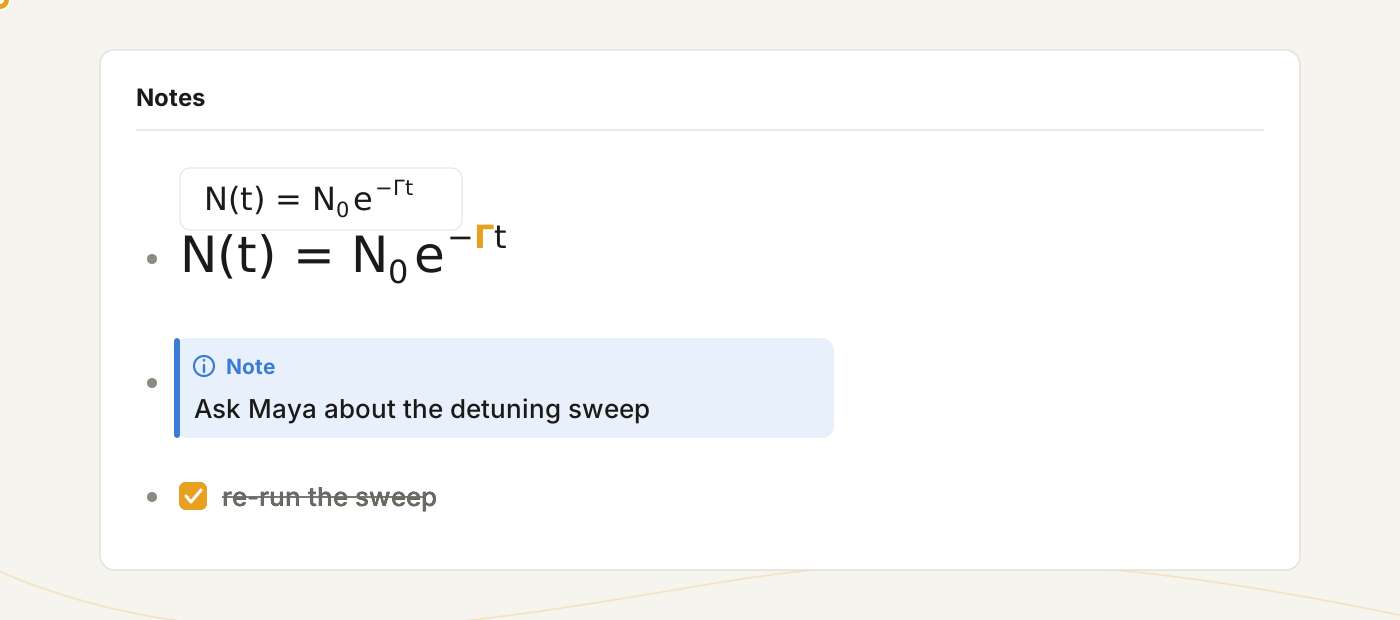
Notes are a nested outline. Highlights and free notes are the same kind of block.
- Live rendering: the block you are on stays raw; everything else renders. Headings, lists, to-dos, callouts, tables, code, images, links.
- Math:
$…$and$$…$$render with KaTeX, with a live preview while you type and Tab hopping between{}arguments. - Pictures: paste or drag an image in; drag its grip to resize. Double-click a picture, or press the zoom button in a picture's or a diagram's toolbar, to see it full size; in a chat reply a click on a diagram does the same. Right-click a picture or a diagram and choose Copy image to paste it elsewhere; this needs HTTPS or localhost.
- Tables are edited in place; a table from Excel pastes as markdown.
- "/" menu: type
/for headings, callouts, code, colors, a notebook sheet, a new page. - Quotes and callouts keep going over several lines: Enter carries the
>(and a list inside it) to the next line, and Ctrl+Shift+. quotes or unquotes the selected lines./callouton a quote's first line turns it into a callout; on a line inside one it starts a box inside it. - Pasting keeps the structure: pasted lines land at the level of the line you paste onto, in its quote or beside its list item, and a pasted list keeps its sub-items. The Paste as menu offers Nested (one level in) and As copied. The
/line commands (headings, lists, to-dos, quote, callout) keep a line's quote and indentation. - Formatting bar: select text in the note you are editing and a bar of tools opens above it: bold, italic, underline, strikethrough, code, equation, link, highlight and Color, which offers text colors and background tints. A pressed button shows what the selection already has; press it again to take that off. Escape puts the bar away. On a touch screen the same tools sit in the bar above the keyboard.
- Formatting keys are Obsidian's: Ctrl+B, Ctrl+I, Ctrl+U, Ctrl+K and so on. Underline and colors are written as the HTML that Obsidian and GitHub show. Rendered notes copy as rich text; math copies as LaTeX.
Outline and links between pages#
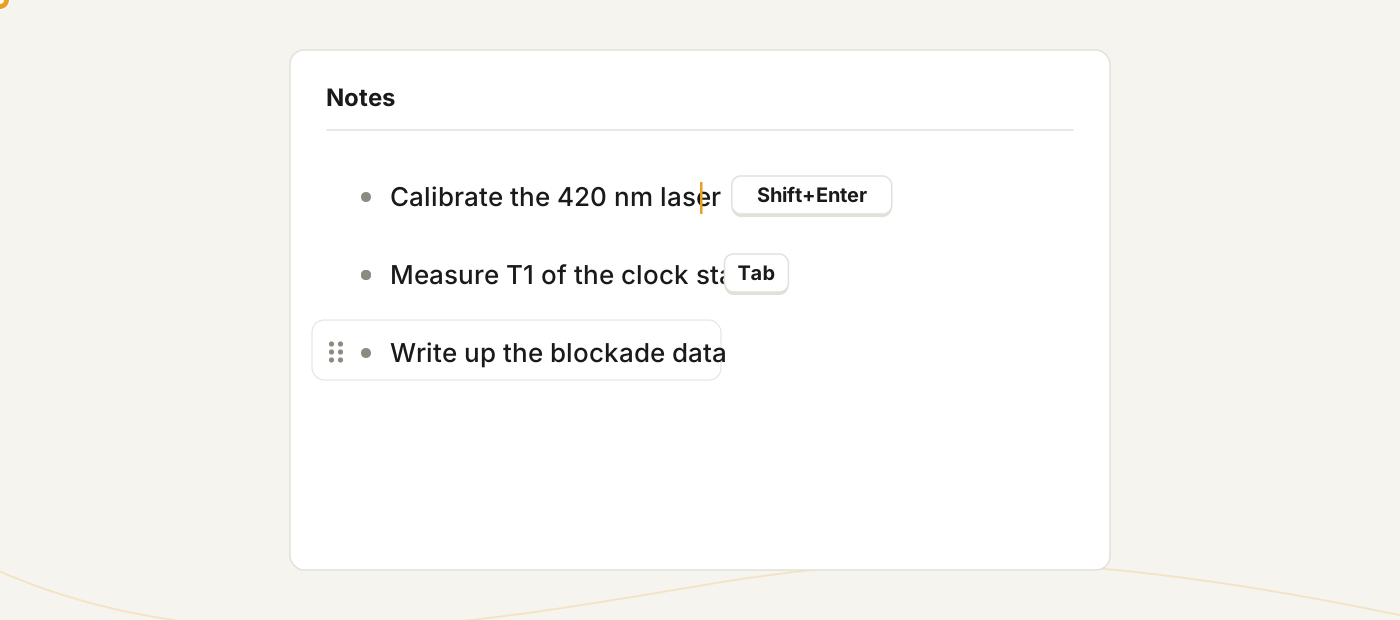
- Enter inserts a line break, Shift+Enter a new note (swap them in Settings → Keyboard). Tab / Shift+Tab indent and outdent.
- Drag the ⋮⋮ handle to reorder or re-nest; + under it adds a block.
- Undo is one history for the whole page.
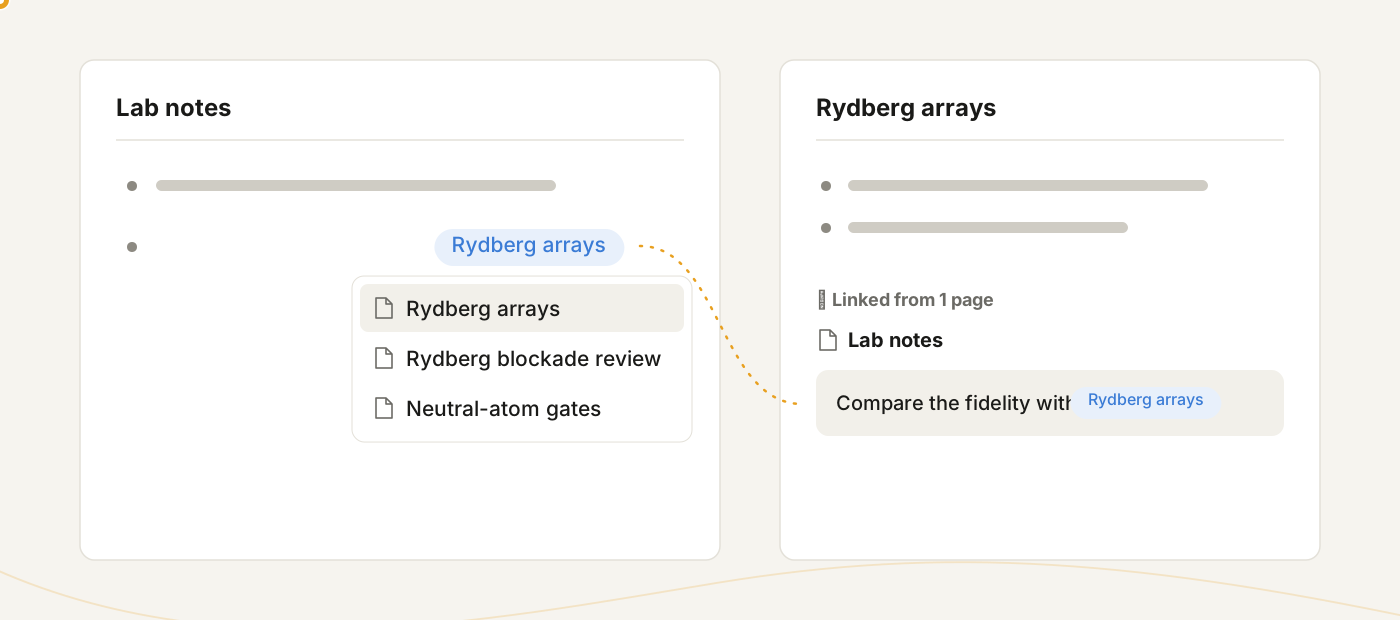
[[links to a page or a note; the link is a clickable chip, and Linked from under a page lists everything that links to it.![[block]]embeds a block you can edit in place.@mentions a date, a person or a page, as in Notion: Today, Remind me (tomorrow at 9, or what you type, such as@fri 3pmor@remind me next mon;@remind @bob frireminds a colleague), the people of the workspace, and pages by title. A reminder shows a card at its time, and a system notification if you allow them, while Gamma is open.- /page makes a new page from a note and links it where you typed.
AI chat#
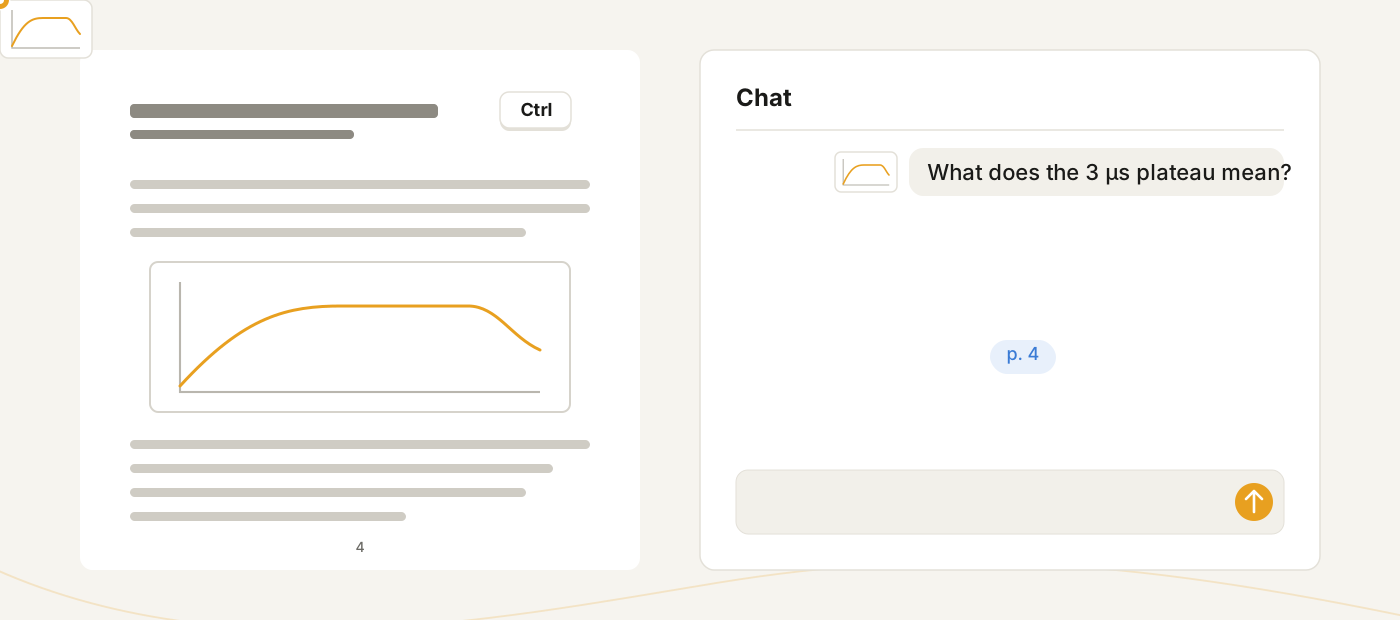
Open the chat from the View menu (≡) → AI Chat. Gamma has no AI of its own: connect a service in Settings → AI → Connections and the chat uses your account with it. Keys stay on the server and are never sent back to the browser; a server administrator can also add connections everyone on the server shares.
- The chat reads the open paper by itself. The PDF button sends the file with every message while it is on, so the model sees figures and tables. The file stays at the start of the conversation, so after the first message the provider can serve it from its prompt cache.
- Add more: paste images, Ctrl+drag a region of the page, click highlights to quote them, type @ to attach another paper.
- Citations are clickable:
p. 12jumps the PDF to the passage and highlights it. - The model chip switches the model, reasoning effort and speed. Each reply says what wrote it and what it cost in tokens.
- Select part of a note and ask for a change: the assistant rewrites only that selection.
- Each paper and folder keeps its own conversation. New chat starts over and keeps the old one in History; Alt+click it to throw the old one away.
AI services you can connect#
A connection is a sign-in or an API key plus the address the chat talks to. The dialog checks the key against the service's own model list, and you pick the models the chat offers from that list.
| Service | Sign-in | Address |
|---|---|---|
| ChatGPT | Your ChatGPT Plus or Pro subscription, signed in in the browser. No API key | Fixed; nothing to enter |
| Anthropic (Claude) | Console API key | https://api.anthropic.com, or any service that speaks the Anthropic Messages API |
| OpenAI API (GPT) | API key | https://api.openai.com |
| DeepSeek | API key | https://api.deepseek.com |
| Kimi | API key, or a Kimi Code subscription | https://api.moonshot.ai; China https://api.moonshot.cn; Kimi Code https://api.kimi.com/coding/v1 |
| Qwen | API key, or a Coding Plan subscription | Model Studio https://dashscope-intl.aliyuncs.com/compatible-mode/v1; China https://dashscope.aliyuncs.com/compatible-mode/v1; Coding Plan https://coding-intl.dashscope.aliyuncs.com/v1, China https://coding.dashscope.aliyuncs.com/v1 |
| GLM | API key, or a GLM Coding Plan subscription | Z.ai https://api.z.ai/api/paas/v4; Zhipu China https://open.bigmodel.cn/api/paas/v4; Coding Plan …/api/coding/paas/v4 on either host |
| OpenRouter | API key | https://openrouter.ai/api/v1 |
| Custom endpoint | API key, if the server wants one | Any OpenAI-compatible address: a gateway such as LiteLLM, or a local server such as Ollama, vLLM or llama.cpp |
DeepSeek, Kimi, Qwen, GLM, OpenRouter and the custom endpoint sit under the Other tile. A coding-plan subscription is an API key the vendor's console makes for that plan, pointed at the plan's own address; Alibaba allows the Qwen Coding Plan only inside coding tools. There is no Anthropic subscription sign-in, since Anthropic's terms do not allow one: Claude is reached with a Console key.
The library agent#
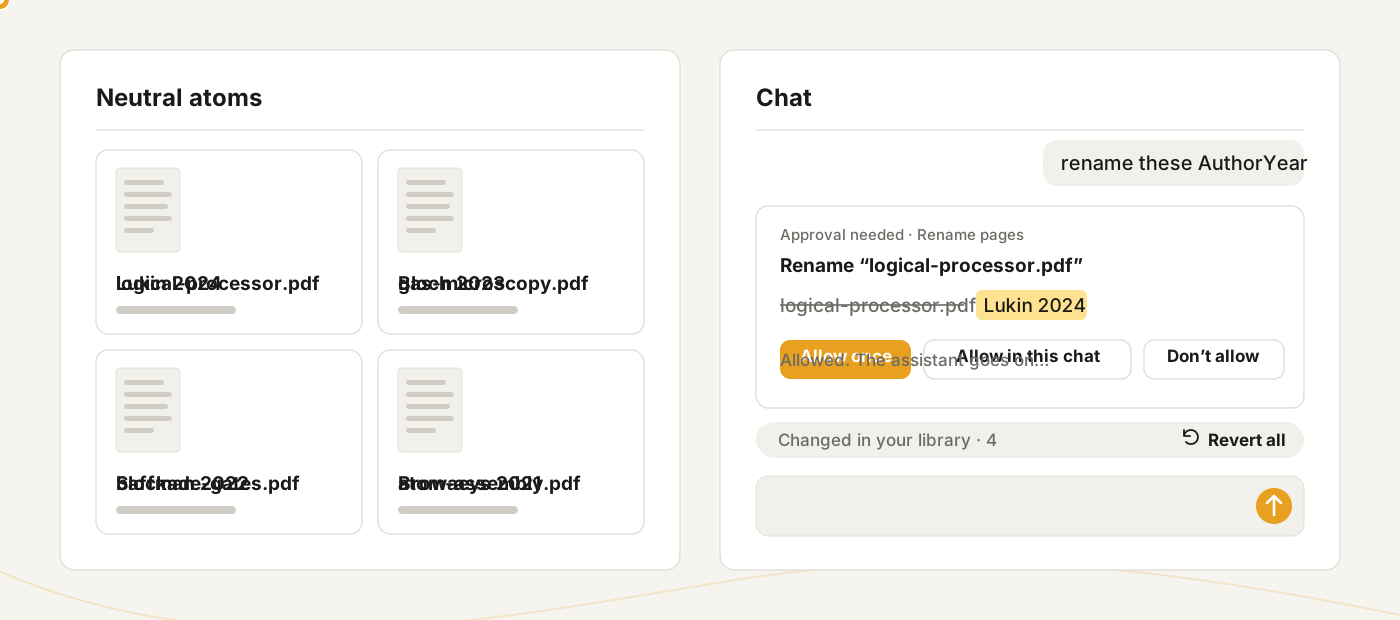
On the home page or in a folder, the chat can act on your library: list, read and search the papers in view, rename them, file them into folders, rename folders, make and apply labels, delete a folder or a label (never its pages), search the web for papers and save them, build BibTeX, and edit your notes. On a paper, the same chat reads, searches and edits that paper and its notes.
- It asks first. A change shows as a card — many pages renamed, filed or labelled together show on one card that lists them all. Allow once, Allow in this chat, Always allow, or Don't allow (with a line on what to do instead). Deleting a folder or a label asks every time: Allow once or Don't allow.
- Everything it changed is listed under the reply. A note change, a rename, move or label change (one page or many at once), or a deleted folder or label, can be undone there; pages you changed since are left as they are.
- A reply stops after 32 tool rounds or 200 changes (Settings → AI → Tool usage → Tool limits), or when the conversation is too long for the model; Continue under it carries on, as it does under a reply cut off at the output limit. With Unlimited rounds it runs until it is done or you press Stop, in its chat or in Background tasks; longer jobs cost more tokens. On a shared AI connection without a daily allowance the usual limits stay, unless you are an administrator.
- Settings → AI → Tool usage sets each permission below to Allow, Ask or Off (Delete folders and labels: Ask or Off only), for folder, PDF and notes chats separately, with presets from Read library to Allow all. Reading is allowed by default; anything that changes your library asks.
- A journal that blocks the server shows a card: open the page in your browser and Gamma Connector sends the PDF back.
What the chat's tools can do#
| Permission | Tools | What they do |
|---|---|---|
| Read your library | ||
| List pages | list_pages, list_folders, list_deleted |
Browse page titles, folders, metadata and Recently deleted; a long library in batches (folder chats) |
| Read pages | read_page, read_chats, cite |
Read PDF text, highlights, notes, earlier chats and citation records (metadata, BibTeX) |
| Read note blocks | read_block |
Read individual notes and their outline |
| View pages and handwriting | view_pdf_page, view_ink, view_image |
Look at figures, tables, scanned pages, your handwriting and the pictures in your notes and on your pages |
| Search library | search_library |
Find text in your notes and PDFs |
| Web research | ||
| Search papers online | search_papers, related_papers, search_web |
Find papers on Crossref, arXiv and OpenAlex, follow their citations, and search the web through your AI connection, Brave Search or SearXNG (Tool usage → Online search) |
| Fetch documents | fetch_paper, read_paper |
Read a DOI, arXiv id or URL without saving it; a paywall or sign-in hands the fetch to your browser |
| Use journal sign-ins | Use the publisher sign-ins Gamma Connector saved when fetching | |
| Make changes | ||
| Save papers | save_paper |
Add a paper found online to the library |
| Rename pages | rename_page |
Change pages' titles, many in one call (folder chats) |
| Move pages | move_page |
File pages into a folder, many in one call (folder chats) |
| Restore deleted pages | restore_page |
Bring pages back from Recently deleted (folder chats) |
| Organize folders and labels | rename_folder, create_label, rename_label, label_page |
Rename folders, and make, rename and apply labels — to many pages in one call (folder chats) |
| Delete folders and labels | delete_folder, delete_label |
Delete a folder or a label, never its pages; always asks, and you can revert it from the reply (folder chats) |
| Edit note blocks | edit_block, create_block, move_block, delete_block, clip_region |
Create, edit, move and delete notes, transcribe handwriting, and clip a region of a PDF page into a note |
The agent cannot delete pages: deleting a folder or a label leaves its pages in your library. An assistant connected from outside (Assistants) gets the reading tools only.
Library#
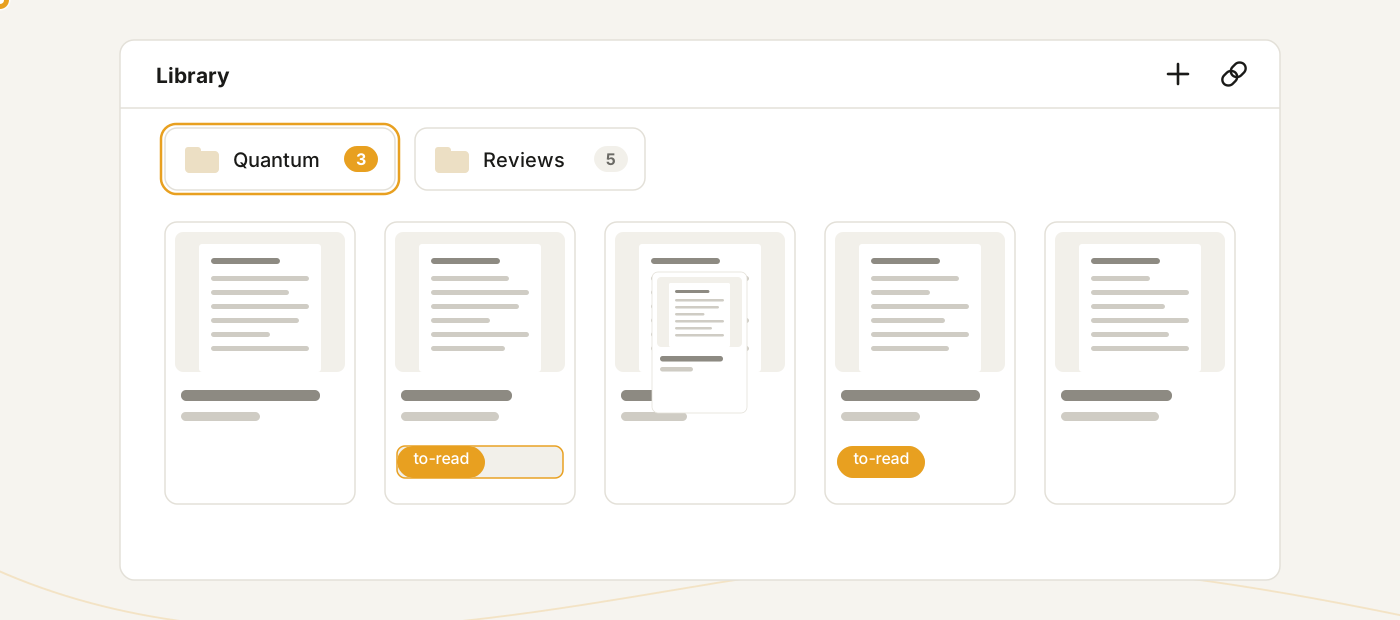
The home page lists your pages, most recent first, with a Recently viewed strip on top.
- Labels are words you'll search for. Folders are labels that nest, for a topic or a talk. Neither one copies a paper (which to use).
- Select like a file manager: click, Ctrl+click, Shift+click; double-click opens; right-click for rename, move, label, share, export, delete.
- Recently deleted keeps a page for 30 days, with its notes and files.
Labels or folders?#
Neither one copies a paper, and a paper can have as many labels and folders as you like. The difference is how you'll come back to it.
A label is a word you'll search for. A paper on PDH locking gets pdh. A paper from Vladan's lab on PGC cooling gets vladan and pgc. Labels are flat, so keep them short: a technique, an author, a lab, a keyword.
- Add one: right-click the paper → Add label → New label…, or type it into the label row under the paper's title and press Enter. You can also drop a paper on a label in the Labels view.
- Find papers with it: click a label chip to list its papers, or press Ctrl+P and type its name. In search, type it and press Tab to get a filter chip. The listing bar's Labels view shows every label, with how many papers have it.
A folder is a label that nests. Use one for a topic you're studying or something you're preparing.
- A topic: make Quantum computing, and inside it Neutral atom, Superconducting qubits and Ion trap. A paper filed in Neutral atom shows Quantum computing / Neutral atom next to its labels.
- A talk: make gm1 for one group meeting and gm2 for the next. A paper you present at both sits in both folders. It is still one paper with one set of notes, whichever folder you open it from.
- Make one: click New folder in the listing (inside a folder, this makes a subfolder), or right-click a folder → New subfolder.
- File a paper: drag it onto the folder, or right-click it → Move to folder. Either way the paper keeps its other folders. Typing the folder's name into the label row works too. If you file a paper into a subfolder of a folder it is already in, it moves down into the subfolder instead of staying at both levels. To take it out, drop it on the back row, or use Move to folder → Remove from.
- Use it as a whole: share the folder, export it with a
.bibof its papers, or ask the AI about everything in it. Each of these includes the subfolders. A folder chip in search limits the results to that folder. - Deleting a folder never deletes its papers. They stay in their other folders, or at the library root.
A simple test: if you'd type it into search, make it a label. If you'd open it and work through it, make it a folder.
Coming from Zotero? A folder is a collection (subfolders are subcollections) and a label is a tag. A Zotero import turns collections into folders and tags into labels, and a Zotero export turns them back; a Zotero link keeps the two in step. One difference: Zotero keeps an item in the parent collection when you add it to a subcollection, while Gamma moves it down into the subfolder.
Search#
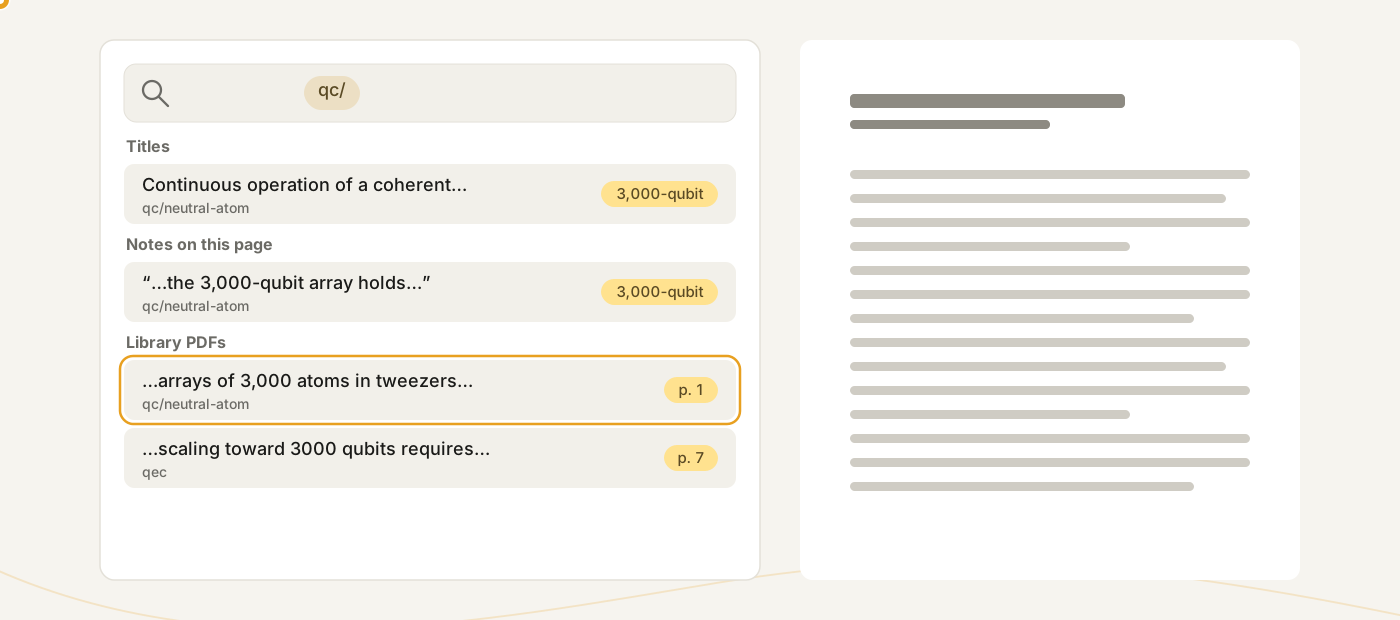
- Ctrl+F on a page, Ctrl+Shift+F anywhere: titles, notes, highlights and the full text of every PDF, at once. "3000" finds "3,000-qubit".
- Type a folder or label name and press Tab for a filter chip.
- Ctrl+P jumps to any page, folder or label by name. Shift+Enter creates a page with what you typed.
Metadata and citations#
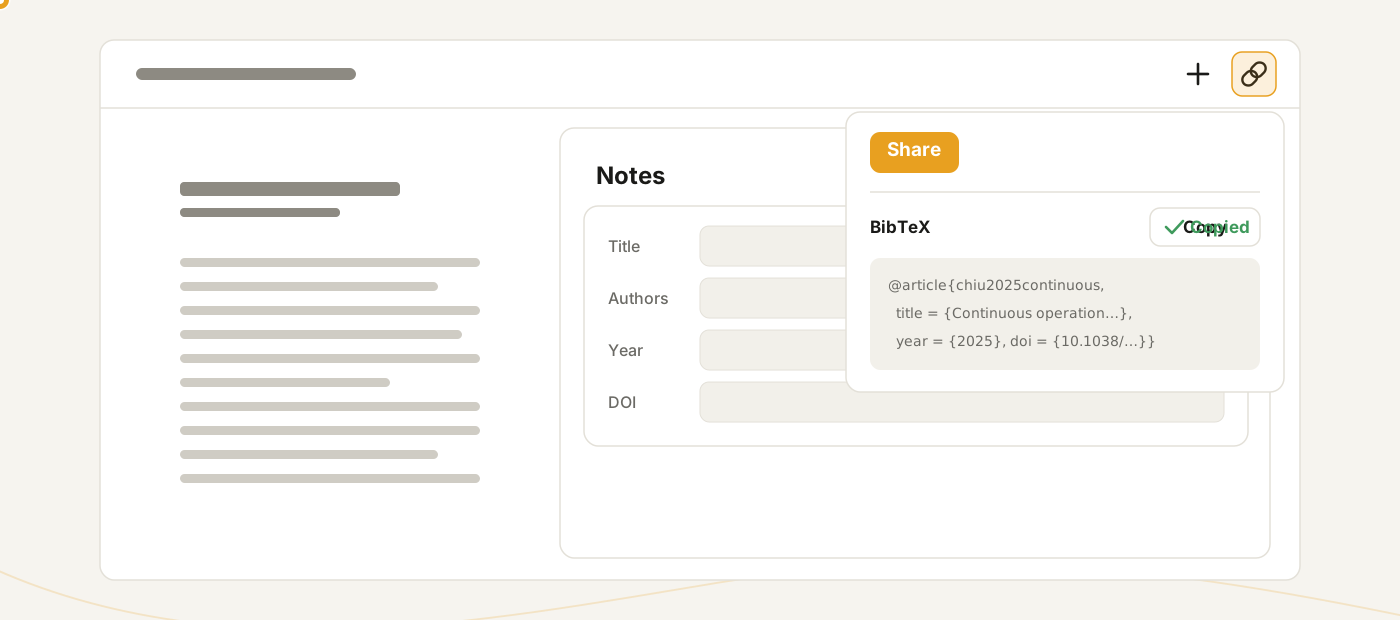
- Title, authors, venue and year are filled in when a paper is added (arXiv, then DOI, then AI). The (i) button in the Notes title row shows and edits them, with ↻ refetch.
- A red ! means nothing tied the record to this PDF: a supplement, for one, prints only the DOIs of papers it cites. Type the right DOI or arXiv id and press Save metadata: the rest of the fields fill in from doi.org or arXiv.
- The share popover holds the BibTeX entry and a slide-ready citation, each with a copy button.
- Type says what the paper is: journal article, conference paper, preprint, book chapter, book, thesis and so on, with the same names Zotero uses. It decides the BibTeX entry (a conference paper is an
@inproceedings) and which fields the popover shows. - Cite key is the name LaTeX cites the paper by: made from author and year, or pinned by you. Zotero imports keep their keys.
Share a page#
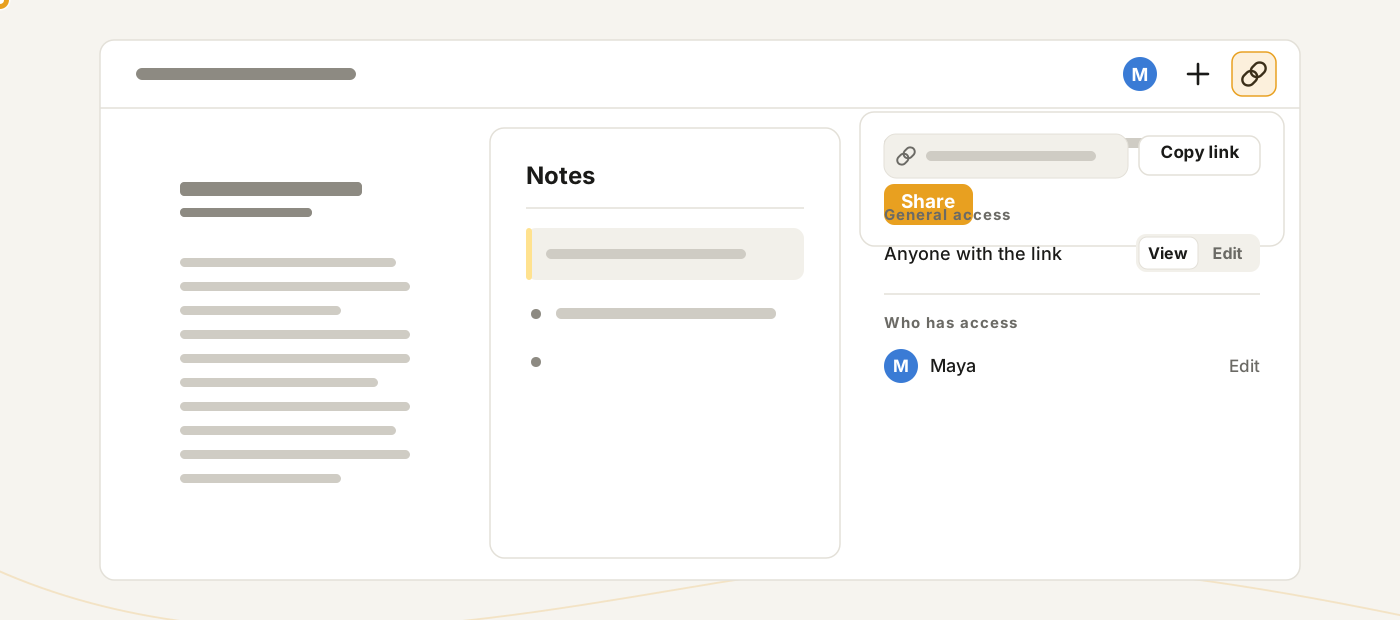
The link button in the top bar shares the open page.
- Share makes the link. Copy link carries the workspace, so a teammate lands in the right library.
- Who has access: invite people by name, each with View or Edit. They find the page in their Inbox.
- E-mail: on a server whose Gamma Cloud sign-in allows it, the This server / E-mail switch beside Who has access invites someone by their e-mail address, even without an account here yet. Gamma Cloud mails them a link to create a free Gamma Cloud account or sign in with theirs. They show as invited, with View or Edit, a resend and a withdraw button, until they accept; then the page is theirs to open. Only the mailed link lets anyone in, so someone who already has an account here gets the mail too and accepts the same way. If someone here already goes by their Gamma Cloud username, they get a name like tim-2, with their Gamma Cloud name shown beside it.
- Requests to join: on a server that admits invited people only, someone who signs in from your link without an invitation asks to join instead. The request heads Who has access with Approve and Decline, and comes to your Inbox; they sign in again once you approve.
- General access: anyone with the link, signed-in users, or invited people only, with View or Edit for that audience.
- Editors edit alongside you with live cursors. Stop sharing ends the link.
- Share a folder the same way: the link opens every page filed in it.
- Copy a shared page or folder into your library: paste its link into + in your own Gamma, or press Add to my library on the shared page or folder. A folder comes with its pages and subfolders, as a folder of your library's own; from another Gamma server this works for links open to anyone.
Workspaces#
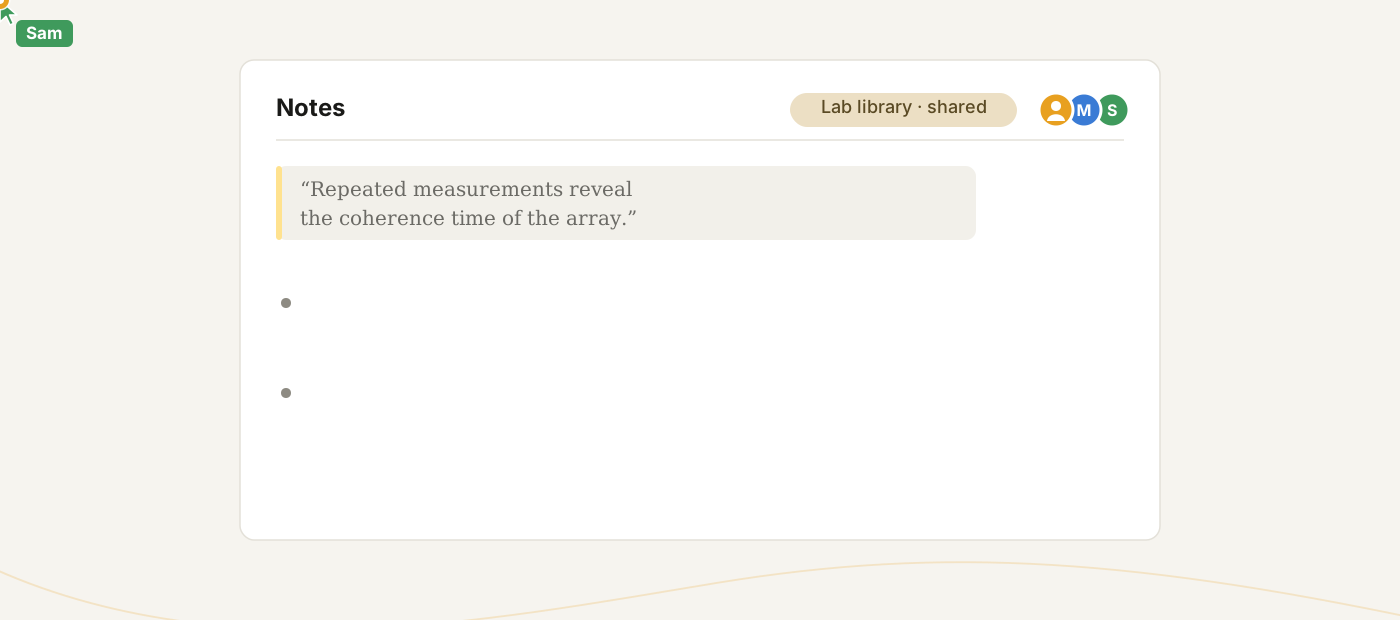
A workspace is a separate library. The account menu lists yours and switches between them.
- Personal workspaces are yours alone; make more for separate projects.
- Shared workspaces are created by an administrator, with owners, editors and viewers. An owner invites people from the workspace's Manage page: an account on this server or, where Gamma Cloud sign-in allows it, an e-mail address, which gets a link to join as an editor or a viewer.
- Edits and cursors appear live; two people in the same block merge by span.
- Open tabs, pinned folders and reading positions follow your account across devices.
Comments and inbox#
Comments are a conversation about a note, a highlight or a page. They sit beside the notes and change none of them, and everyone who can open the page can read them.
- On a note: hover it and click the speech bubble at the right of its row, choose Comment in the ⋮⋮ handle menu, or press Ctrl+Shift+M while you edit it. A note with open comments shows how many on the bubble.
- On a passage of the PDF: select it and click the speech bubble after the colors. The passage is highlighted and the comment field opens beside it; close it without sending and the highlight goes again. A passage with comments and no note is underlined in its color.
- On a highlight: right-click it in the PDF and choose Comment. A badge in the accent color then marks it on the page; click the badge to read the comments.
- In the PDF's margin: when there is room beside the page (zoom out from fit to width, or widen the PDF pane), a highlight's comments show as cards to the right of the page, level with the passage, and a new comment on a passage opens there too. A card shows the first comment and how many replies follow; click it, or the highlight, to read the whole thread and reply. Click elsewhere or press Escape to put it back. Without room, the badge and its popover work as above.
- On the page: the speech bubble beside the title.
- Click a thread to reply: its reply field opens under it. The field is a note's editor:
@mentions someone,[[links a page or note,$…$writes math, and/opens the command menu with the commands that write text (headings, lists, to-dos, quotes, callouts, equations, tables, code, diagrams, the date, colors). Enter breaks the line, continuing a list as in a note, and Shift+Enter (or Ctrl+Enter) sends; the send button's hint names the key. On an on-screen keyboard Return breaks the line and the button sends. Resolve a thread once it is settled and Reopen it later. The ⋯ on a comment edits or deletes your own, and Copy link gives a link that opens the page at that thread. - View → Comments opens the Comments window: the page's threads, Open or Resolved, the latest first. A click goes to the thread. On a phone it is under More.
- Who can comment: anyone signed in who can open the page, viewers too, and people a share link lets in. Without an account, a share link shows the comments with Sign in to comment.
- Deleting a note hides its comments, and undoing the delete within seven days brings them back. Backups and Gamma zips keep comments; offline copies, published pages and the other export formats leave them out.
The bell in the top bar is your Inbox (on a phone, More → Inbox). Its number counts what you have not read yet, across every workspace and share you can open.
- It tells you when someone mentions you in a note or a comment, replies in a thread you wrote in or were mentioned in, resolves a thread you started, shares a page or a folder with you, adds you to a workspace, or asks to join through a link you shared (a click opens its Share popover).
- Unread, All and Archived sort the items; Mark all read clears the count. Each item's buttons mark it read or unread and archive it or move it back.
- Click an item to go there: the page opens at the note, with the thread showing for a comment, in another workspace or through the share link when that is how you reach it. An invitation opens its workspace.
- An item whose page, note or comment is gone, or that you can no longer open, moves to Archived by itself.
- Inbox notifications in Settings → Appearance also shows new items as system notifications on that device while Gamma is open (not in the iPad app).
- Guest accounts have no Inbox, and mentions typed in an offline copy tell no one.
Offline copies#
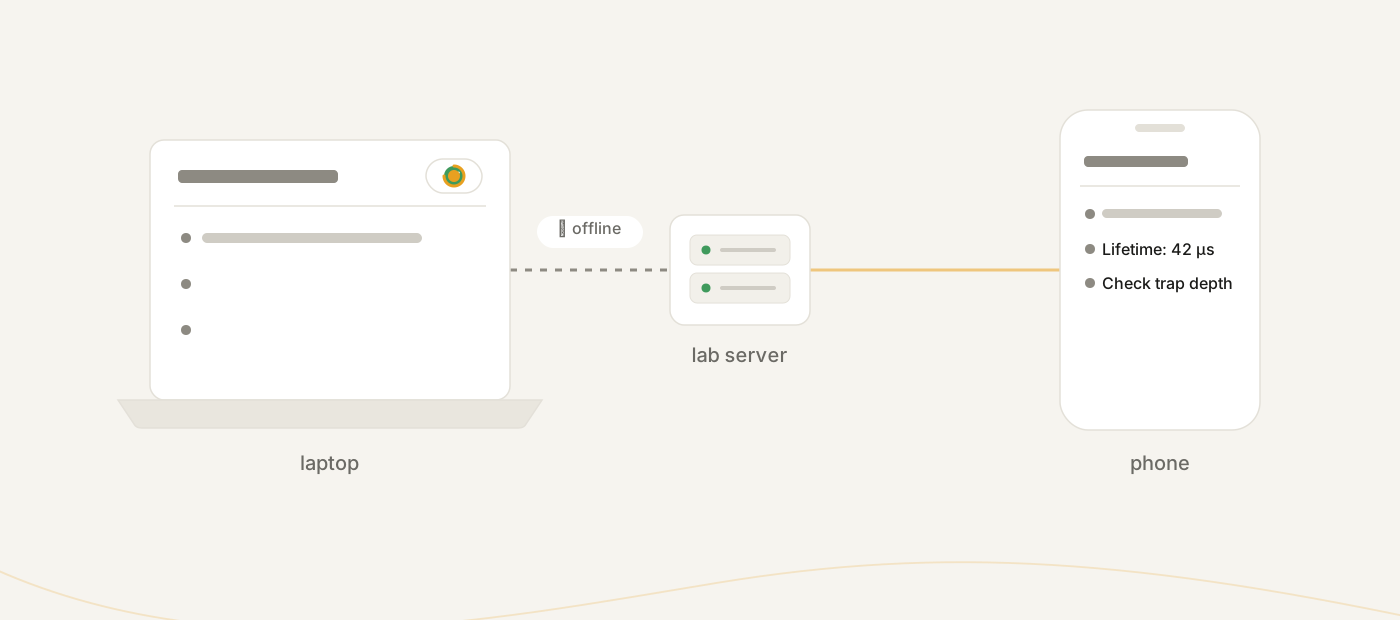
Your library lives on your server. For the train or a lab without Wi-Fi, keep an offline copy: a workspace on a Gamma on your own laptop that holds a full copy and keeps the two in step.
- Desktop app: open the server, open the workspace switcher, click clone on the workspace's row.
- Pages, highlights, ink, files, folders and labels travel; comments stay on each server, and chats and reading positions on each device.
- Edits made offline go with the next sync. Edits to the same words show a merge chip: pick local, remote or merged.
- The sync pill in the page header shows the state and opens the log and settings.
- Update both sides. When an update changes how Gamma stores a library, a copy and its server on different versions pause, and the sync pill says which one to update. Edits made meanwhile wait and go once both are updated.
- A folder on this computer (desktop app): right-click a folder in the library and choose Keep on this computer…, or use Keep a folder… in the sync button's panel at the right of the title bar. Pick a directory, and the folder is kept there as PDFs beside Markdown notes. On your NAS's workspace this needs no clone: only that folder's files come down, read with a key the app makes for it. The upload arrow on the folder's row in the sync panel sends PDFs you change there (annotated in another reader, say) back to Gamma as their pages' new files; it is off until you turn it on. The sync button shows how your clones, folders and files stand.
- A file on this computer (desktop app): a page's Document menu → Follow a file on this computer…, then pick a PDF, such as the
main.pdfyour LaTeX build writes. Each time the file changes it becomes the page's PDF: the notes stay, and the highlights move to where their text now is. Gamma never writes to the file. - The sync panel lists each clone, kept folder and followed file with pause (then resume), sync and, for a folder or a file, stop. A paused folder isn't touched, and a paused file isn't sent, until you resume or sync it; pausing a clone detaches it, and resuming merges what both sides did meanwhile. Stop asks whether to keep or remove a folder's files; a followed file always stays.
- Keep running in the background: a switch in the launcher's settings and the tray. Gamma then stays in the tray when the window closes, so clones, Zotero links, folders and files on disk keep syncing; Start at login starts it there.
Zotero link#
A Zotero link keeps a workspace in step with a Zotero library through zotero.org, both ways: what you read, highlight and file in Gamma shows up in Zotero and on your other computers, and what you change in Zotero arrives here. Zotero stays the catalogue and Gamma becomes its PDF reader. Zotero itself need not be open, or even installed.
Connect your Zotero account#
Settings → Account & sync › Zotero; the link dialog offers the same buttons when no account is connected yet.
- Connect Zotero opens zotero.org in a new tab: approve the key there, and the row updates by itself. It is offered on the desktop app, and on a server that uses Gamma Cloud sign-in (or has a Zotero app of its own) and whose Public server URL is confirmed in Settings → Server.
- Use an API key… works everywhere: create a key at zotero.org/settings/keys/new, tick Allow library access, Allow notes access and Allow write access, choose Read/Write under Default Group Permissions, and paste it. Gamma checks it with Zotero first. The key stays on the server.
- The row then names your Zotero user and what the key may do: Read · Notes · Write · Files · Groups. Without write access a link only receives (receive only · your Zotero key cannot write), as it does in a group the key may only read, or whose own settings do not let you edit it; without notes access notes travel neither way; without file access the PDFs stay in Zotero.
- Connect again (where signing in is offered) or Use an API key… replaces the key, for one with more access or after Zotero stopped taking it (key no longer works). Disconnect pauses every link until you connect again; nothing is deleted.
Link a library#
Settings → Workspaces › Clones and Zotero links → Link a Zotero library…
- Library: My Library or one of your groups. The line under it says what the library holds, such as 1,930 PDFs · 8.1 GB in Zotero Storage · 120 linked files Gamma cannot download ("at least" for a library too large to count ahead), and what the key may not do there.
- Into: a new workspace, named after the group (Zotero for My Library) unless you fill in Name here, or one of your personal workspaces. There its papers pair with Zotero's items by Zotero key, DOI, arXiv id or the PDF itself, then by title and year, and its folders with collections of the same name and nesting. The dialog says what the first sync will do: 412 papers match, 37 will be added to Zotero (210 MB), and Also sent to Zotero: 3 folders as collections · 120 tags from your labels on matching papers · 40 pages' notes as Zotero notes · 812 highlights as annotations. If a page differs picks the side that wins where a matched paper differs: Take Zotero's or Keep Gamma's. The log counts what it replaces, and a Zotero PDF that Gamma's goes over is kept under Conflicts. Zotero's version still wins for a note holding what Gamma cannot write back (citations, tables, colours…) and for a PDF whose Zotero annotations Gamma cannot carry over.
- Then Direction (below), PDFs from Zotero (below), Send PDFs to Zotero (on for a new workspace, off for an existing one: a PDF added or replaced here goes to Zotero, unless the paper's PDF there is a linked file or not in Zotero Storage; off, your PDFs stay in Gamma), Automatic tags as labels (Zotero's automatic tags, publishers' keywords among them; off, they stay in Zotero untouched) and, into an existing workspace, PDFs without a record: a PDF whose paper record is not found stays in Gamma (Keep in Gamma) or goes to Zotero as a document (Send as documents).
- Link opens the linked workspace and starts the first sync in the background: the workspace fills as you watch, and the pill says how far it is. A large library comes in many short rounds: the pill counts them (First sync 300 / 2,000) and its popover the PDFs (PDFs 1.2 GB / 8.0 GB).
Directions and the sync pill#
- Two-way: your changes go to Zotero and Zotero's arrive here. Receive only: Zotero's changes arrive, and yours stay here until you switch back to two-way, when they go. Detach stops both for now, and Reattach merges what both sides did meanwhile.
- The sync pill in the page header reads the link as it reads a clone (Up to date · 14:02, Local edits not synced yet, 3 changes queued · 14:02, a badge for conflicts) and says when something needs you: Reconnect Zotero, whose Reconnect opens your Zotero account, Zotero unreachable · your edits wait here, This key no longer reaches Lab papers, Zotero storage is full · 4 PDFs wait, 12 PDFs not in Zotero Storage. Its log lists what each round pulled from Zotero and pushed to it.
- The pill's gear holds the link's settings: Automatic sync, when Zotero's changes come in (Live, the default: Zotero tells Gamma when something changes; or every 30 s, every 5 min, or Manual: no schedule, Zotero's changes come with the next round, on Sync, after an edit or for a change still queued), Sync after an edit (a round 3 s after your last change; a page's Notes from Gamma note goes once the page has been still for 60 s), Direction, the PDF and tag settings, Force pull, Force push, Detach and Remove link. The link's row in Settings → Workspaces › Clones and Zotero links has the same under More (the settings behind Link settings…).
- On the desktop app the sync button in the title bar lists Zotero links beside clones, with pause, resume and sync, and a local server that holds a link starts when the app does, so the link syncs without opening that server.
What travels#
| Gamma | Zotero | |
|---|---|---|
| Folders | Collections | Names, nesting and filing |
| Labels | Tags | Your own tags; automatic ones with Automatic tags as labels |
| A paper and its record | An item and its fields | Field by field |
| A page from a standalone PDF (a PDF and no record) | That standalone PDF | Gets a parent item once you save its record under the (i) button, or press Verify there |
| The paper's PDF | The item's PDF | The one Zotero's reader opens |
| A note from Zotero, as blocks in the notes | That note | Block by block |
| The paper's other notes | One note, Notes from Gamma | Sent once the page has been still for a minute |
| A note page from Zotero | A standalone note | Note pages made in Gamma stay in Gamma |
| Highlights, area highlights | Highlights (an underline comes in as a highlight), image annotations | Colour, place and text; a highlight's notes are its comment, bold and italic kept |
| Handwriting on a PDF page | Ink annotations | One per colour and width, without pressure or timing |
| Text boxes on a PDF page | Text annotations (a sticky note comes in as a yellow box) | The text, without Markdown |
| Recently deleted | Zotero's trash | Both ways |
- A paper you add in Gamma becomes a Zotero item once its record is found, in the collections of its folders and with its PDF when Send PDFs to Zotero is on.
- Deleting a page sends its item to Zotero's trash, and an item trashed in Zotero goes to Recently deleted here; restoring either brings it back on both. A folder, a note or an annotation deleted on one side goes on the other too, into Zotero's trash when you deleted it in Gamma: Gamma never removes anything from Zotero for good. Something edited on one side while deleted on the other is kept on both (Kept: edited after a delete; a page whose item Zotero removed for good after you changed it goes back to Zotero as a new one where it can), and a folder whose collection Zotero trashes stays here while it is shared or kept on disk.
- A text box synced with Zotero takes Zotero's font and no padding, so it wraps as Zotero shows it, at the same words, blank lines included. A box you type on a linked paper starts out that way; one made before the link moves its edge to its text the first time it syncs. Markdown still shows here, and Zotero gets the plain text.
- Annotations travel while both sides hold the same PDF. One waits while its PDF is not here yet, while the two PDFs differ, or while it is dashed after a PDF replacement (until you accept it); the pill's tooltip counts what waits, and why.
- What stays where it is: in Gamma, comment threads (Discussion threads stay in Gamma), AI chats, note pages made in Gamma, notebooks and sheets, recordings, pictures placed on a PDF page, and the pictures you add to notes (Zotero's note pictures come here and go back); in Zotero, an item's other attachments (a second PDF, a web snapshot, a link) and their annotations.
PDFs from Zotero#
- All brings every PDF in Zotero Storage with its annotations. When opened brings the records, notes, folders and labels whole, a PDF and its annotations when you open its page, and the 50 newest at once; it is the default above 1,000 PDFs, for a library too large to count ahead, and on the iPad app's own server.
- Until its PDF is here, a paper's paperclip is a cloud whose card reads PDF in Zotero · 2.4 MB, with Download now; opening the page puts its PDF first in line. Gamma takes Zotero's file rather than one you attach, so the annotations on both sides stay on one PDF.
- A PDF Gamma cannot download stays in Zotero with its annotations, and its card says why (a linked file in Zotero, not in Zotero Storage (WebDAV), your Zotero key cannot read files). You can attach your own copy there. For a linked file or one not in Zotero Storage, it stays in Gamma and is not sent to Zotero. When the PDF only waits (a download that failed, a key without file access, this server's storage full), your copy goes to Zotero once Gamma can read Zotero's file, with Send PDFs to Zotero on, and Zotero's is kept under Conflicts.
- Replace the PDF… in Gamma sends the new file to Zotero when Send PDFs to Zotero is on: it waits while your highlights are moved onto it (the pill's tooltip says so), then goes over Zotero's file with them. When highlights are left dashed or lost, or the old file carries annotations Gamma may not move (another group member's), the new one goes beside it instead. A paper whose Zotero PDF is a linked file or not in Zotero Storage keeps the new file in Gamma. A PDF replaced in Zotero comes here, and Gamma's highlights move onto it.
Conflicts#
- When both sides changed the same thing (a field of the record, a note, a highlight's colour or comment, the PDF), Gamma's version is kept on both sides and Zotero's waits beside it, so nothing is lost. The pill counts them, the block or the paper's record carries a chip, and the account menu says 2 sync conflicts to look at in your Zotero link.
- The card shows Gamma (changed here) and Zotero (changed in Zotero). Pick Zotero and press Apply to take its version, here and in Zotero; Apply with Gamma's picked keeps it and marks the conflict resolved. Keep all in the pill's Conflicts view keeps Gamma's for every one. For a PDF replaced on both sides, Gamma's went to Zotero and Zotero's file is kept here to take instead; when Gamma's went beside Zotero's as a second PDF, taking Zotero's puts the paper back on Zotero's own PDF, its newest file. If Zotero changed the thing again since, its newer version has already come here, and taking the old one is refused.
- On a receive-only link, Gamma's version stays in Gamma and goes to Zotero once the link sends changes again; the card says so.
- Kept in Gamma: a Zotero note with citations, tables or colours that Gamma cannot write back carries a badge (Zotero note with citations: edits stay in Gamma), and the editor warns before your first edit. Its card offers Send to Zotero anyway, losing what Gamma cannot hold, or Zotero's version. A conflict that only reports something (Kept: edited after a delete, Another member's annotation, Change not synced, which says why Zotero refused) has OK.
- Force pull takes Zotero's version of everything both sides have, its trash included: a page whose item is in Zotero's trash goes to Recently deleted, where you can restore it for 30 days, and a note or annotation Zotero trashed is deleted here, even one edited here. Force push sends Gamma's, and an item whose page is in Recently deleted goes to Zotero's trash; a note Gamma cannot write back and a PDF whose Zotero annotations Gamma cannot carry over still take Zotero's version. Each asks first. The records, notes and annotations a force replaces are counted in the log and listed, read-only, under the link's Conflicts › Resolved in Settings. A Zotero PDF a push writes over is kept under Conflicts instead. Gamma keeps no earlier version of a page: only a backup made before brings one back.
- Resolved: the link's Conflicts in Settings → Workspaces → Clones and Zotero links has Open and Resolved. Resolved lists the conflicts you resolved and the differences the first link or a force decided, the most recently recorded first, up to 500. Each shows when it arose and both versions. A note's or an annotation's card also says what the sync round did then, such as which side it took. A changed record's or folder's card says so only on a receive-only link. A choice you made later is not shown. Nothing there changes the workspace.
Detach, remove, link again#
- Detach pauses the link and Reattach resumes it, merging what both sides did meanwhile. A PDF still in Zotero waits for the reattach.
- Remove link ends it for good: the workspace stays an ordinary workspace of yours and the library stays in Zotero. A PDF that never came stays in Zotero, and the page takes one you attach. To link the library again later, pick that workspace under Into: its papers pair with their items by Zotero key, so nothing is doubled.
- Rolling back a linked workspace from a snapshot (Settings → Backups) sends the restored version to Zotero; what Zotero changed meanwhile waits under Conflicts.
Limits#
- Zotero Storage only. PDFs kept on WebDAV and linked files cannot be downloaded through zotero.org, so they and their annotations stay in Zotero. When Zotero's storage is full, the PDFs it lacks wait: Gamma tries again after a day, on Sync now, or when the link's settings change, and more room is at zotero.org/storage.
- Group libraries: Zotero lets no one edit another member's annotations. Gamma shows them with a badge (Maya's annotation: read-only in Zotero), keeps your changes to them in Gamma, and puts back one you delete. What Gamma writes into a group is yours in Zotero.
- Notes: after an edit in Gamma, a Zotero note's paragraphs go back as list items.
- Text boxes wrap as Zotero's do when both draw the same font on one computer: checked on Windows, not yet on macOS, Linux or the iPad.
- Annotations travel on a paper's own PDF only: a second PDF, an EPUB or a web snapshot keeps its annotations in Zotero, and a highlight that runs onto the next page comes in on its first page only.
- One link per workspace: only a personal workspace links, a library links into one workspace of yours, and a clone cannot be linked. Import → Zotero library into a linked workspace is refused, since its items arrive by themselves. An offline copy of a linked workspace works as any clone: its edits reach Zotero through the server's link.
Gamma Connector#
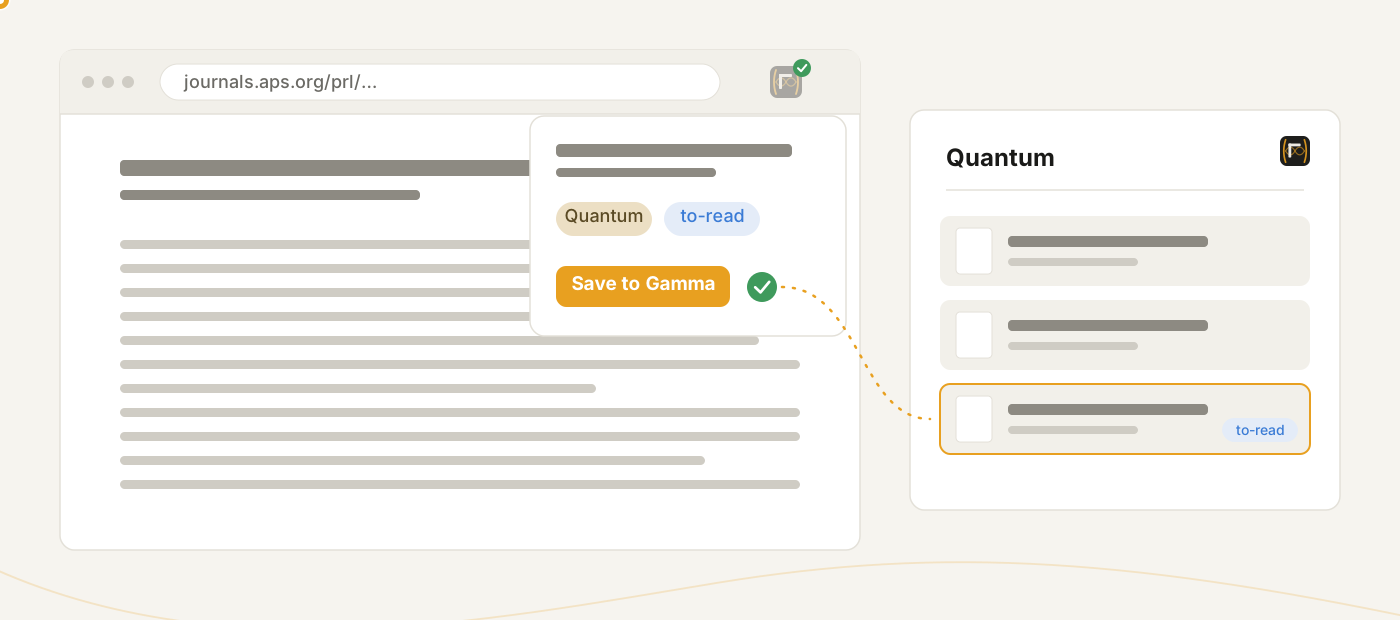
The browser extension saves the paper you are reading in one click: PDF, metadata, folder and labels. Add it from the Chrome Web Store (Chrome, Edge and other Chromium browsers), then click its toolbar button and enter your Gamma's address. Each release also carries it as a zip to load unpacked at chrome://extensions.
- The badge lights up on a page with a paper. Click it, pick a folder and labels, Save to Gamma. Ctrl+Shift+S saves with the default folder.
- Right-click to save a link, a page, or clip a selection as a quote.
- With several libraries, pick which one saves go to in the popup's Workspace row.
- Publisher sign-ins: the cookie button sends your browser's sign-in for that journal to your server, so it can fetch that publisher's PDFs by itself from then on.
Assistants#
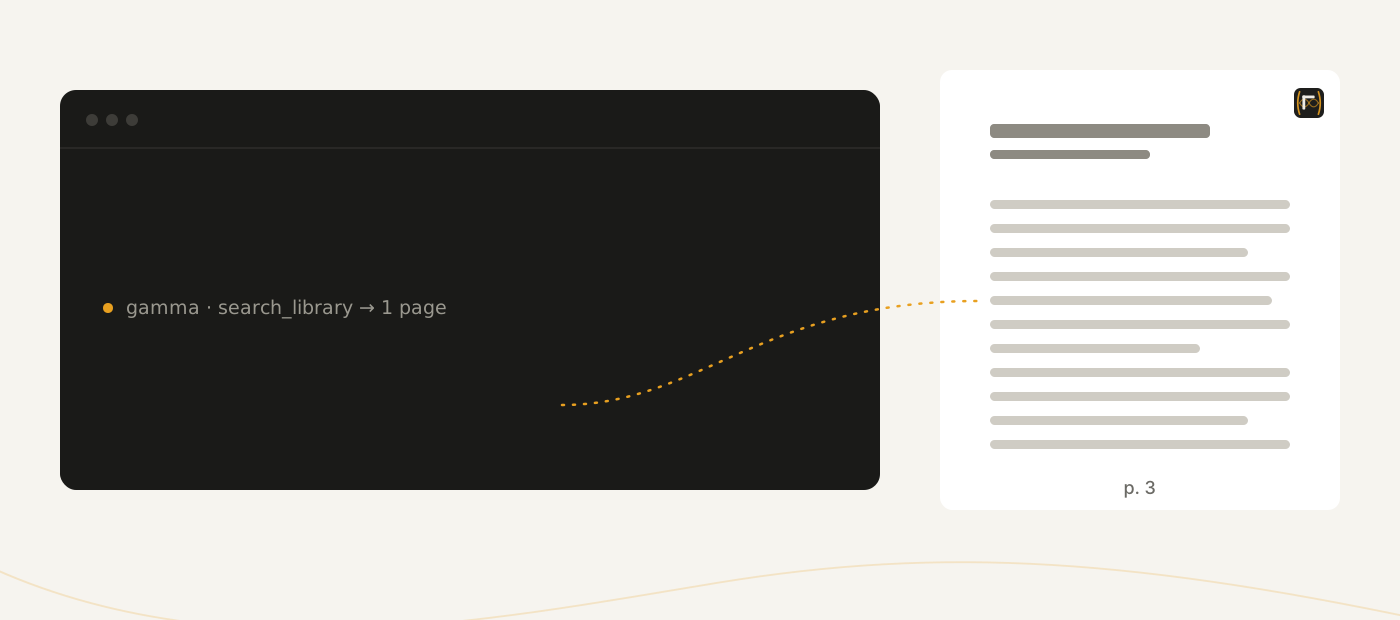
Codex, Claude Code, DeepSeek Harness and any MCP client can search and read your papers, notes, highlights and PDF text, read-only, for one workspace you approve. Gamma runs an MCP server at <your Gamma>/mcp; the assistant connects to it and brings its own model. Gamma's own chat does not connect to outside MCP servers.
- Settings → AI → Integrations shows the setup for each assistant: run it where you use the assistant, approve the workspace in the browser, then ask: "@Gamma, in the blockade paper, how is the blockade radius measured?"
- Paste a Gamma page, block or share link into the question and the assistant reads that page.
- A remotely hosted Gamma needs its Public server URL confirmed once in Settings → Server. A connection expires after 90 days; the same pane disconnects one.
Connect an assistant#
| Assistant | How it connects |
|---|---|
| Codex CLI | One setup command from the Codex CLI tab: it installs the Gamma plugin and opens the browser sign-in. By hand: codex mcp add gamma --url <your Gamma>/mcp, then codex mcp login gamma |
| Claude Code | claude mcp add --transport http --scope user gamma <your Gamma>/mcp, then /mcp → gamma → sign in. The optional plugin from a release adds the /gamma:gamma workflow |
| DeepSeek Harness | No browser sign-in: create a read-only token in its tab, run the install command once, then the start command, which asks for the token |
| Any other MCP client | Add the MCP URL with the client's sign-in option (OAuth in the browser). A client without OAuth gets a token from Manual setup (advanced) and sends it as a bearer token |
What an assistant can use#
| Tool | What it returns |
|---|---|
list_folders |
The folder tree, each folder with its path and page counts |
list_pages |
Pages with titles, folders, labels and metadata; filter by folder, label or title |
search_library |
Full-text hits in notes and PDF text, with where each one is |
read_page |
A page's notes, highlights, properties and PDF text in windows |
read_block |
One note block or a page's note outline |
read_chats |
The AI chat kept with a page or folder |
view_pdf_page |
One PDF page as a picture: a scan, a figure, a table |
view_ink |
Your handwriting as a picture |
view_image |
The pictures a note embeds, or a picture placed on a page |
cite |
The citation record kept with a page: metadata and BibTeX |
read_gamma_link |
A pasted page, block or share link, read in place; a folder share lists its pages |
export_page |
A page as Markdown, or as a PDF: the annotated paper or the notes typeset |
The first ten are the chat's own reading tools. An assistant never gets the write tools or the web tools: the connection is read-only, and the assistant has web access of its own.
Import and export#
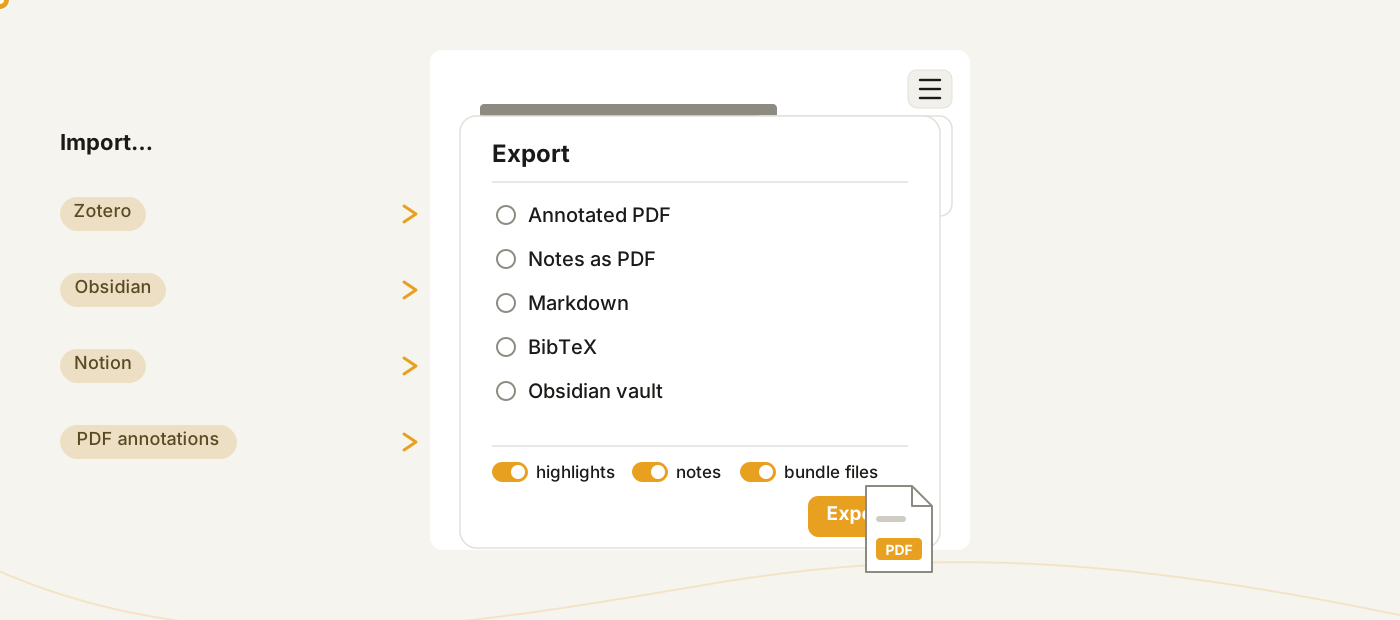
Both are in the View menu (≡), on a page or on the home library (with a folder open, Export takes the whole folder). To keep a Zotero library and Gamma in step instead of moving files between them, use a Zotero link.
- Import: a Zotero library (RDF with files: pick or drop the export folder, or a .zip of it), Notability notes, GoodNotes notebooks, an Obsidian vault or Notion export, Markdown, Logseq, annotations embedded in a PDF (an image stamp becomes a picture), or a Gamma export from another Gamma. For a Zotero library, Notability notes, GoodNotes notebooks, Markdown (an Obsidian vault or Notion export too) or a Gamma export, a review lists what you uploaded beside the library it will make, in the same order, before anything is imported; click a name on either side to find its match on the other.
- From Notability: export the notes with File Format Note or NTB (in a note: the options icon → Export Options; in the library: press and hold a note → Export Options). Then pick the .note or .ntb files, or a .zip of them, under Notability notes. Each note becomes a page. A note with PDF pages keeps them as its PDF, its paper pages printed into it; a note on paper alone becomes a notebook. Handwriting, shapes, sticky notes, text boxes, math, pictures (with their crop, turn, flips, caption and lock) and recordings come along (from an NTB export, all but its recordings), and the text typed on the page itself becomes the page's notes. Sticky notes lie over pictures and text boxes, and text boxes over pictures: a picture or box Notability shows on top of one comes in under it, which the import says. A recording plays, but the handwriting does not replay with it. Notes already imported are skipped.
- From GoodNotes: on an iPad, iPhone or Mac, export the notebooks in GoodNotes' own format (a document's menu → Export → GoodNotes; a folder exports as one .zip). Then pick the .goodnotes files, or the .zip, under GoodNotes notebooks. Each notebook becomes a page. One on GoodNotes' papers becomes a notebook of sheets on the same papers, one on a PDF keeps the PDF. Handwriting (pressure widths, highlighters, pencils, shapes and their fills), text boxes, pictures and recordings come along; tape becomes an opaque band, and Shape tool objects and sticky notes are left out, which the import says. GoodNotes on Android, Windows and the web exports PDF only: add that PDF as a paper, then Import → Annotations in this PDF. Notebooks already imported are skipped.
- Export: Annotated PDF (highlights, ink, text boxes and pictures as real annotations), Notes as PDF or Markdown, a Notability note, BibTeX, an Obsidian vault, a Logseq graph, a Zotero library, or a Gamma zip.
- To Notability: choose Notability in Export. The page becomes a .note: its PDF or its sheets of paper, the handwriting with its pressure and tilt, shapes, text boxes, pictures (with their crop, turn, flips, caption and lock), your notes as the note's typed text, and recordings (.m4a). Open it on the iPad or the Mac with Notability (from Files, or AirDrop it). Highlights stay behind, since Notability keeps none on a PDF's text; the export says what else a note could not keep. Imported back into Gamma, the .note is the page it was, until Notability saves it: from then on Gamma gets what Notability keeps (no stroke times, one paper for every page).
- Keep a bibliography up to date: share a folder, then Export → BibTeX → Keep this .bib up to date gives a link Overleaf can refresh.
- Keep a folder on your disk: in the desktop app, a folder's Keep on this computer… writes its papers as PDFs beside Markdown notes into a directory you pick and keeps it up to date. What you change there is never overwritten, and goes back to Gamma only for PDFs, when you turn on the folder's upload arrow in the sync panel. Notes files never go back.
- Follow a PDF on your disk: in the desktop app, a page's Document menu → Follow a file on this computer… makes each new version of a PDF there, a LaTeX build say, the page's PDF. Without the app,
gamma_sync.py pushdoes the same from a build script.
Backups and upgrades#
- A workspace exports as one zip from Settings → Workspaces; Import there restores or merges it.
- Snapshots in Settings → Backups roll back a workspace; Add task schedules them. Administrators snapshot the whole server and can keep off-site copies in an S3 bucket.
- A new version upgrades your data by itself after taking a snapshot. If the data is too old for one step, Gamma changes nothing and shows a page naming the release to run once first. If an older Gamma opens data a newer one already upgraded, it shows a page too, changes nothing, and the fix is to update that Gamma.
Install as an app#
- iPad / iPhone: open your Gamma in Safari, Share → Add to Home Screen. The Apple Pencil writes right away.
- Android: Chrome → ⋮ → Install app. Desktop browsers: the install icon in the address bar.
- Desktop app (Windows, macOS, Linux): a self-contained Gamma with local libraries, which also opens your servers and keeps offline copies. From the Microsoft Store or the releases. A PDF opened with Gamma (Open with → Gamma, or Gamma chosen as your default PDF app) goes into the library the app shows and opens there, with any annotations another reader saved in it; a library other people see asks first.
- The Gamma iPad app (beta) keeps a copy of one workspace on the iPad for handwriting with no connection. Install Apple's TestFlight app, then open the TestFlight invitation on the iPad. The chevron at the right end of its server bar hides the bar (⌘⇧B with a keyboard), and View → Server bar brings it back (More when the iPad is upright).
On a phone everything becomes full-screen views behind one bottom bar: Library, PDF, Notes, Chat, Add, Search, Share and More. On a desktop the Notes and Chat windows dock left, right or bottom by dragging their grip, and tabs sync to your account.
Settings#
Account menu → Settings, or Ctrl+,; the card with your name at the top of the account menu opens Account & sync. The search box at the top finds any setting by name. A red dot on the account button means something needs a look; the menu says what.
| Pane | What's there |
|---|---|
| Account & sync | Your account, storage, the Gamma Cloud link, your Zotero account, settings sync |
| Appearance | Theme, dark PDF pages, library cards, interface size, Inbox notifications, the top bar's buttons, the viewer's tools |
| Reading & editing | Imported annotations, open-access fallback, how a new version of a PDF moves its highlights, handwriting, how search opens |
| Language and Translation | Interface language, what translates and into what |
| Keyboard | Every shortcut, rebindable; what Enter makes |
| AI → Connections, Chat, Tool usage, Integrations | Providers and keys, defaults, agent permissions, assistants |
| Workspaces, Backups, Maintenance | Workspaces, clones and Zotero links, snapshots, storage and index health |
| Users, Server (administrators) | Accounts and invitations by e-mail, public URL, Gamma Cloud sign-in and requests to join, shared workspaces, server backups, the log |
| Help & diagnostics | Session log, Report a problem… (adds what a maintainer needs, never your notes) |
Top bar in Appearance hides a button you never use, or shows Background tasks and the Inbox only when they have news. A hidden button becomes a row of the account menu, and its shortcut still works. Viewer tools does the same for the column of buttons beside a PDF or a notebook: a hidden tool moves into the ⋯ at the column's end, and one you are using (a recording, a translation, the pen's strip, the text highlighter) stays on the column until you are done. In both lists, drag a row by its ⋮⋮ grip to change the order, or focus the grip and press ↑ / ↓; Reset puts the default order and buttons back. To get there from the bar itself, right-click (or long-press) an empty part of the top bar, or the viewer's column, and choose Customize top bar… or Customize viewer tools….
Invite by e-mail… in Users mails someone who has no account yet a link to make a free Gamma Cloud account, or sign in with theirs, and join this server. The Invitations list under the accounts sends one again or withdraws it.
Shortcut cheat sheet#
Ctrl+Shift+P runs any command by name. Settings → Keyboard changes any key, including the key held to box a region of the PDF and the key held to see a translation's original. On a Mac, Ctrl is ⌘ and Alt is ⌥.
| Keys | Does |
|---|---|
| Ctrl+F / Ctrl+Shift+F | Search everything (on the home page: filter the listing / the full search) |
| Ctrl+P | Quick open: a page, folder or label (Ctrl+Enter searches, Shift+Enter creates a page) |
| Ctrl+Shift+P | Command palette |
| Ctrl+, | Settings |
| F2 / Del | Rename / delete the selected page |
| Ctrl+Z / Ctrl+Y (or Ctrl+Shift+Z) | Undo / redo |
| Alt+← | Back through link jumps |
| Enter / Shift+Enter | Line break / new note (swappable); in search: next / previous match; in chat: send / newline; in a comment: newline / send |
| Tab / Shift+Tab | Indent / outdent a note; accept a filter chip; hop {} arguments or table cells |
| ↑ / ↓ | On a note's first / last line: move into the note above / below |
| ← / → | At the text's edge: collapse / expand the note's children |
| Ctrl+Shift+K | Delete the line (children stay) |
| Backspace | On an empty note: delete it |
| Ctrl+B / Ctrl+I / Ctrl+U / Ctrl+E / Ctrl+Shift+X / Ctrl+Shift+H | Bold / italic / underline / code / strike / highlight |
| Ctrl+K | Link the selection (URL from the clipboard) |
| Ctrl+Shift+. | Quote or unquote the selected lines |
| Ctrl+Shift+M | Comment on the note being edited |
| Ctrl+C / Ctrl+X / Ctrl+V / Ctrl+D / Ctrl+A | With the pen strip open: copy / cut / paste / duplicate the selected handwriting; select all handwriting on the page |
| 1–9 · P / H · [ / ] · E · L · T · I · V · R · S · Z | Pen strip: a preset by number · next pen / highlighter (Shift: previous) · thinner / thicker · eraser (hold it to erase once) · lasso · text · picture (the file picker) · hand · ruler · shapes · zoom window (Enter in it: a new line) |
/ · [[ · @ |
Command menu (in a comment, the commands that write text) · page link · in a note or a comment, mention a date, person or page; in chat, attach a paper |
| Ctrl+wheel | Zoom the PDF at the cursor |
| Ctrl+drag on the page | Capture a region for the chat, and an optional area highlight |
| Hold Alt | On a translated page: see the original |
| Ctrl+click a highlight | Quote it into the chat |
| Ctrl+drag across note text | Attach that passage to the chat |
| Double-click | Open a library card; collapse a window (on its grip) |
| Right-click a tab | Pin it, or pin its page to the library |
| Ctrl+Shift+S | In the browser extension: save this page to Gamma |
| Esc | Close popups, clear selections, cancel modes |
Rendered from docs/user_guide/user_guide.md in the Gamma repository.